June 18, 2026
How to Set Up Dual Monitors Ergonomically: A Guide for the Home Workspace

Musculoskeletal disorders now account for 88 percent of recognized occupational diseases. If you spend serious hours at a desk, your body is likely already feeling the impact of a setup that was never properly considered. Learning how to set up dual monitors ergonomically is the difference between a workspace that supports your output and one that creates chronic discomfort. The workspace shapes the work. Equip it deliberately.
You probably already know that neck stiffness and eye fatigue should not be part of your daily routine. We agree that your space should be built for the work you actually do, not just for where the cables happen to reach. This guide will teach you how to arrange your displays to prevent strain and build a workspace that works for you. We will preview the latest June 2026 OSHA vertical "Golden Angle" guidelines and the 80/20 rule for horizontal alignment to help you build a setup that earns its place in your home.
Key Takeaways
- Choose a layout that reflects your daily tasks. Use centric alignment if you spend most of your time on one screen to minimize repetitive neck movement.
- Position your displays at an arm's length and set the height so your eyes naturally meet the top third of the glass.
- Learn how to set up dual monitors ergonomically to prevent long-term strain and create a workspace that actually feels intentional.
- Equip the surrounding space with considered lighting to balance screen glare and build a room you choose to come back to.
Choosing the Right Layout for Your Specific Workflow
The workspace shapes the work. Equip it deliberately. Most people assume that adding a second screen is a shortcut to efficiency, but without an intentional layout, you are simply adding clutter. When you consider how to set up dual monitors ergonomically, the first step isn't moving the hardware. It's identifying your primary eye path. This is the line of sight where your eyes naturally rest when you aren't thinking about it. Understanding this path allows you to minimize repetitive neck rotation, a major contributor to the posture issues found in 83 percent of remote developers. Many multi-monitor setups are built for looks rather than function; your goal is to build a space made for the work.
The Primary and Secondary (Centric) Setup
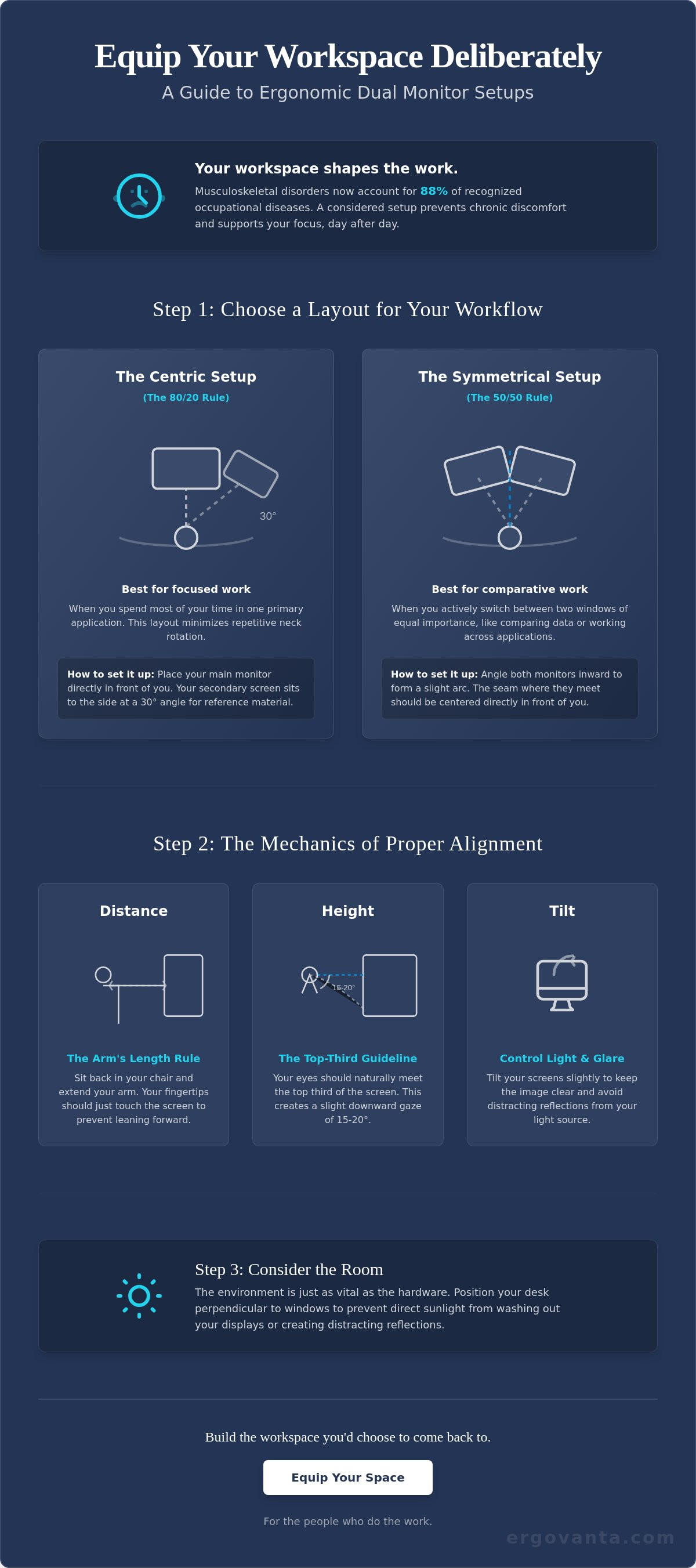
If you spend 80 percent of your day in one application, such as a code editor or a primary writing document, choose a centric alignment. Place your main monitor directly in front of you, exactly where a single screen would sit. Your secondary screen should live to the side at a 30 degree angle. This position is reserved for the small objects that earn their place but don't require constant focus, like Slack, email, or reference PDFs. This layout keeps your neck forward for the heavy lifting and uses a slight, intentional turn for secondary info, protecting your spine from constant twisting.
The Split (Symmetrical) Setup
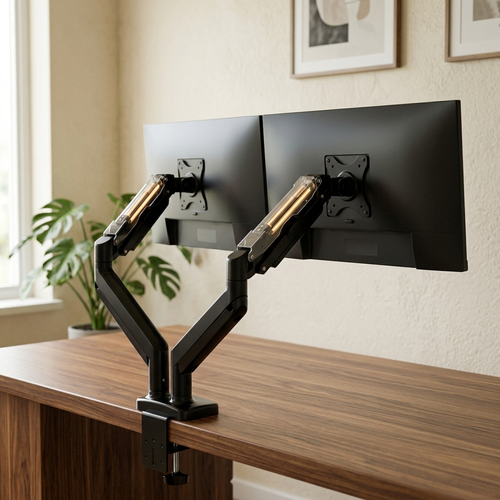
Some work requires constant switching between two active windows. If you are comparing data sets or editing video across two screens, a symmetrical setup is better. Angle both monitors inward to create a concave arc around your head. The point where the two bezels meet should be centered directly in front of your nose. This minimizes the distance your eyes travel and keeps both displays at an equal priority level. To execute this properly, you might use monitor arms to ensure both screens stay at an identical height and depth. Mastering how to set up dual monitors ergonomically in a split format requires precise alignment to ensure the room feels organized rather than chaotic.
The Practical Mechanics of Screen Alignment
If you spend serious hours at a desk, the room around it matters more than you think. Proper alignment isn't just about aesthetics; it's about the physical toll of the work. When learning how to set up dual monitors ergonomically, distance is your first line of defense against fatigue. If your screens are too far, you will unconsciously crane your neck forward. If they are too close, your eyes will struggle to focus. This focal strain leads to the eye fatigue that many people simply accept as a part of the job. It doesn't have to be.
The Arm's Length Rule for Distance
Sit back in your chair and extend your arm. Your middle finger should just touch the screen. This distance prevents you from "turtling," which is the habit of leaning into the display as the day progresses. For those working on smaller desks, space is often a finite resource. You shouldn't have to choose between a second screen and room for your notebook. Using monitor arms allows you to reclaim the surface area while achieving the precise depth required for a considered setup.
Setting the Correct Viewing Height
Your eyes should naturally hit the top third of the screen. Align the top of the monitor casing with your forehead. This ensures your gaze is slightly downward, roughly 15 to 20 degrees, which is the most natural position for human eyes. If your screens don't have built-in height adjustment, equip your space with a monitor stand to bring the work to you. This simple change stops the "forward head posture" that affects 83 percent of remote developers after five years of WFH. Precise height adjustment is an intentional choice that protects your long-term comfort. If you have questions about specific desk depths, you can always reach out for guidance on building your space.
Finally, consider the tilt. Glare is a quiet productivity killer. Tilt your screens slightly upward or downward based on your light source to keep the image clear and the room feeling intentional. Every small adjustment helps build a workspace that feels like yours.
Equipping the Surrounding Space for Long-Term Comfort
Equipping your space is an act of intentionality. While much of the focus on how to set up dual monitors ergonomically revolves around the hardware itself, the environment where that hardware sits is just as vital. Dual displays emit significant blue light, and you shouldn't leave your eyes to fight that brightness in a dark room; they'll lose eventually. Building a space that works for you means considering how the light and the room layout interact with your gear and your body.
Managing Light and Glare
Position your desk perpendicular to windows. This simple move prevents direct sunlight from washing out your displays or creating distracting reflections that force you to squint. To balance the intense light from your monitors, use warm, intentional desk lighting to soften the contrast between the screen and the wall behind it. A well-placed desk lamp or a monitor light bar provides ambient light that reduces the burden on your eyes. It's about creating a room that gets used without causing a headache by noon.
Supporting Your Posture
The small objects earn their place when they solve real physical pains. If you find yourself slouching as the day goes on, add a lumbar pillow to your chair. This helps maintain the natural curve of your spine while you focus on the work. Pair this with a foot rest to keep your feet flat and your hips aligned. These are ergonomic accessories designed for the people who do the work, not for the sake of a trend.
Finally, build a workspace you'd choose to come back to. This isn't about status; it's about personal ownership. Adding intentional decor or faux plants makes the space feel like yours. When the room feels considered, focus follows naturally. Equip your space with tools made for the work, and you'll find that long hours feel less like a chore and more like a choice.
Build a Workspace That Works for You
The workspace shapes the work. Equip it deliberately. Understanding how to set up dual monitors ergonomically is more than a one-time task; it's a commitment to your long-term focus. By selecting a layout that reflects your daily workflow and aligning your screens to your body's natural eye path, you have moved from a chaotic desk to a considered environment. Your setup should feel like a tool you've mastered, not a source of strain you have to endure.
The small objects earn their place when they support the person doing the work. Whether you are adding a lumbar pillow for posture or intentional lighting to balance blue light, these are intentional designs for long-term focus. We are here for the people who do the work, helping you build a room you'd choose to come back to every morning. Ready to finish your setup? Equip your workspace with considered ergonomic tools and enjoy free shipping on orders over $100. Your space is waiting. Build it deliberately.
Frequently Asked Questions
Is it better to have monitors side-by-side or one on top of the other?
Side-by-side layouts are standard for multitasking, but vertical stacking is better for minimizing horizontal neck rotation. According to June 2026 OSHA guidelines, a vertical setup should follow the Golden Angle rule. This involves tilting the upper monitor 15 to 20 degrees downward to eliminate upward neck extension. Choose the layout that fits the way you actually do the work and the depth of your space.
How do I stop neck pain from dual monitors?
To stop neck pain, you must address the repetitive rotation of your spine. If you spend 80 percent of your time on one screen, center it directly in front of your eyes. This prevents the constant, subtle twisting that leads to stiffness. Learning how to set up dual monitors ergonomically means placing the screens so your neck stays neutral and your gaze rests naturally on the top third of the glass.
What is the best viewing distance for two 27-inch monitors?
The best viewing distance for two 27-inch monitors is approximately an arm's length, usually between 20 and 30 inches. Because 27-inch displays have a wider field of view, placing them slightly further back helps you see both screens without excessive head movement. Sit back in your chair and extend your arm; your middle finger should just reach the screen. If you find yourself leaning forward, increase the font size rather than moving the hardware.
Should my primary monitor be centered or should both be at an angle?
Your primary monitor should be centered if it handles the majority of your tasks. This centric setup is best for deep focus. If you use both screens equally, angle them both inward to create a concave arc. The point where the monitors meet should be centered with your nose. This intentional alignment ensures you aren't favoring one side and creating a physical imbalance in your posture.
From the catalog