July 27, 2026
Dual Monitor Stand Guide: Reclaim Your Desk Space

The workspace shapes the work. Equip it deliberately. If you spend serious hours at a desk, your screen setup shouldn't be the thing that limits your focus. Most people accept the bulky plastic bases that come with their monitors, but these pedestals are often the primary reason you have no room left for a notebook or a cup of coffee. Integrating a dual monitor stand isn't about adding another gadget to your setup; it is a tool for reclaiming the physical room you need to think and create.
It's frustrating to work in a space where cables are tangled and screens sit at mismatched heights, forcing you into a strained posture. We believe your environment should be a reflection of the work you do. This guide will show you how to choose and install a dual monitor stand to clear desk clutter and build a workspace that supports long hours of deep work. We'll walk through VESA compatibility, weight limits, and mounting styles to ensure your screens are perfectly aligned at eye level and your desk surface is finally yours again.
Key Takeaways
- Understand how a dual monitor stand can reclaim up to 40 percent of your desk surface for the analog tools you use every day.
- Identify the VESA mounting pattern on the back of your screens to ensure your gear fits together perfectly.
- Prioritize the weight capacity of the arms over the diagonal screen size to maintain a stable and reliable setup.
- Choose the mounting style that fits your desk, whether it is a non-destructive C-clamp or a permanent grommet mount.
The Intentional Setup: Why Two Screens Need One Stand
The workspace shapes the work. Equip it deliberately. If you spend serious hours at a desk, the tools you choose determine how you feel at the end of the day. A dual monitor stand is a fundamental part of a considered room. It moves the screens from occupying the table to existing in the air. This shift isn't just about aesthetics; it is about reclaiming the physical room you need to think and create. You are moving from a room that holds a computer to a room made for the work.
Standard monitor bases are space thieves. They sit right in the center of your primary work area, leaving you with no room for a notebook or a cup of coffee. By switching to a monitor mount, you can clear up to 40 percent of your desk surface. This recovered space allows you to switch between typing and sketching without rearranging your entire setup every hour. It is about removing the friction that breaks your flow.
Reclaiming Your Desk Surface
The area directly under your screens is the most valuable real estate you own. These plastic pedestals occupy this zone with heavy, unnecessary footprints. When you clear this area, the desk stops being just a place where a computer sits. It becomes a place where you can actually work. You gain room for tactile tools like a sketchbook or a dedicated tablet for reference. It changes the psychology of the room from crowded to considered.
Ergonomics Without the Jargon
Forget the clinical diagrams of viewing angles. Focus instead on how your neck feels after four hours of deep work. If your screens are mismatched or sitting too low, you will naturally start to slouch. This physical fatigue ends your productive hours early. A dual monitor stand allows you to align both panels perfectly at eye level. If you use monitors of different sizes, independent arm tension ensures both stay exactly where you put them. Equip your space so it supports your body. For the people who do the work, an intentional setup is the only way to build a workspace you'd choose to come back to.
Choosing Your Gear: The Three Specs That Actually Matter
The workspace shapes the work. Equip it deliberately. When you select a dual monitor stand, ignore the "inches supported" label on the box. That number is a rough estimate. Instead, focus on the mechanical requirements of your specific screens. Building a considered workspace means choosing tools that earn their place through function, not marketing fluff. You need to ensure the gear you choose can actually support the weight of your screens without drooping or wobbling.
The VESA Audit: Will It Fit?
Look at the back of your monitor. You should see four screw holes arranged in a square. This is the VESA standard. Most consumer screens use either 75x75mm or 100x100mm spacing. Use a ruler to measure the distance between the centers of the holes to be sure. If your monitor has a smooth back with no holes, you aren't stuck with the original pedestal. You will simply need a VESA adapter kit that clamps to the frame, allowing you to use a standard monitor arm.
Weight and Tension Management
Weight is the specification that keeps your screens from sinking to the desk. Multiple studies indicate that a properly adjusted dual-screen setup reduces physical strain; however, that only works if the arms can hold the load. Check your monitor's spec sheet for the "net weight" or "weight without stand." This is the only number that matters for stability.
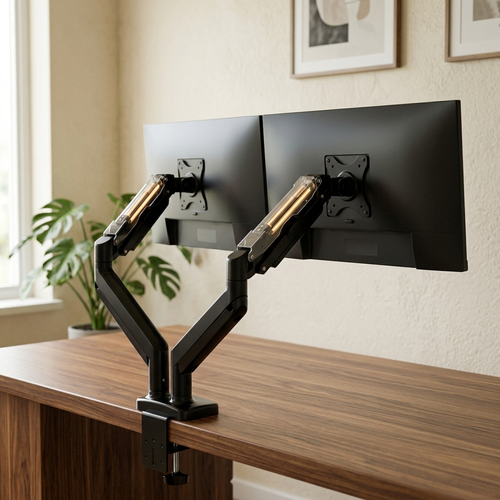
Ultrawide monitors are the exception to standard rules. Because they are wider, they put significant leverage on the tilting mechanism. If you use a 34-inch or larger display, you need a heavy-duty arm designed for that specific torque. For most users, gas spring arms are the ideal choice. They use internal tension to allow you to move your screens with a single finger. If you prefer a permanent, immovable layout, a static pole-mounted arm is a simpler, more rigid alternative. If you are unsure about the compatibility of your current screens, you can reach out for a quick spec check to ensure your new setup is solid.
Building Your Workspace: Installation and Mounting Styles
The workspace shapes the work. Equip it deliberately. Installing a dual monitor stand is the final act of reclaiming your desk. It is the moment the room shifts from a cluttered surface to an intentional environment designed for focus. How you mount the arm depends on your desk's construction and how you intend to use the space. You are not just mounting hardware; you are defining the boundaries of your productivity.
C-Clamp vs. Grommet: Which is Right for You?
The C-clamp is the most common choice. It is for the person who wants to equip their space quickly without drilling holes. If your desk has a clear, accessible edge, the clamp provides a secure anchor that you can move if your workflow changes. The grommet mount is the permanent solution. It is ideal for deeper desks where you need the screens to sit further back than a clamp allows. If your desk has a built-in cable hole, use it as a central mounting point for a cleaner, more balanced look.
Once the base is secure, focus on the relationship between your screens. A primary and secondary layout works best for most. Your main screen sits directly in front of you, while the second panel is angled slightly to the side for reference material. This prevents the constant neck rotation that leads to fatigue. If your work involves long timelines or vertical code, consider rotating one monitor to a portrait orientation. The goal is to build a setup that fits the specific way you do the work.
The Finishing Touches
A considered workspace has no room for a wire nest. Route your cables through the integrated channels in the arms before you tighten the final tension screws. This hides the clutter and ensures the cables don't pull when you adjust the screen height. To find the right fit for your desk, explore the Ergovanta monitor and laptop stands collection. Once the screens are in the air, consider adding a desk mat to define your new, cleared surface. It provides a tactile boundary for your keyboard and mouse, completing a workspace you will actually choose to come back to.
Build the Workspace You Choose to Come Back To
The workspace shapes the work. Equip it deliberately. By clearing your desk surface and aligning your screens at eye level, you remove the physical friction that limits your daily focus. You now understand how VESA standards and weight capacity dictate your gear choice, and why your mounting style should match the specific needs of your desk. These are the small, intentional decisions that transform a room into a place where you can actually think.
Integrating a dual monitor stand is about more than hardware; it is about building a room that gets used. Our tools are designed with a minimalist aesthetic that earns its place, specifically for the people who do the work. If you are ready to equip your space but need a second opinion on your configuration, we offer peer-to-peer support to help you get it right. Equip your desk with considered monitor stands and start building a workspace that feels like yours. It is time to make the space work for you.
Frequently Asked Questions
Will a dual monitor stand damage my desk surface?
A dual monitor stand will not damage your desk if it is installed correctly and features integrated padding. Most considered mounts include rubber or felt liners on the C-clamp to protect the finish of your workspace. If you are working on a desk with a hollow core or thin glass, you should use a reinforcement plate to distribute the pressure. It is a simple way to equip your space without causing permanent harm to your furniture.
Can I mount two monitors of different sizes on the same stand?
You can absolutely mount monitors of different sizes on a single dual monitor stand as long as each screen stays within the weight limits of the arms. Independent gas spring arms are ideal for this; they allow you to adjust the tension for each specific panel. This ensures your 27-inch main screen and 24-inch secondary screen sit perfectly at eye level. It creates a workspace that feels intentional and ready for your specific workflow.
What does VESA compatible actually mean?
VESA compatibility refers to the standardized four-hole screw pattern on the back of your monitor used for mounting. The most common configurations for consumer screens are 75x75mm or 100x100mm squares. If your monitor has a smooth back, you will need an adapter kit to make it work with a standard arm. Verifying this spec is a critical step in building a workspace that functions exactly how you need it to.
Do I need a special desk to use a dual monitor mount?
You don't need a specialized desk, but the surface must be sturdy enough to support the concentrated weight of the mount and screens. Most C-clamps require a flat edge with a thickness between 0.5 and 3 inches. If your desk lacks an accessible edge or sits flush against a wall, a grommet mount through a cable hole is the better choice for your space. Building a stable setup ensures your workspace stays reliable during long hours of work.
From the catalog