October 26, 2026
Computer Monitor Height for a More Comfortable Viewing Position
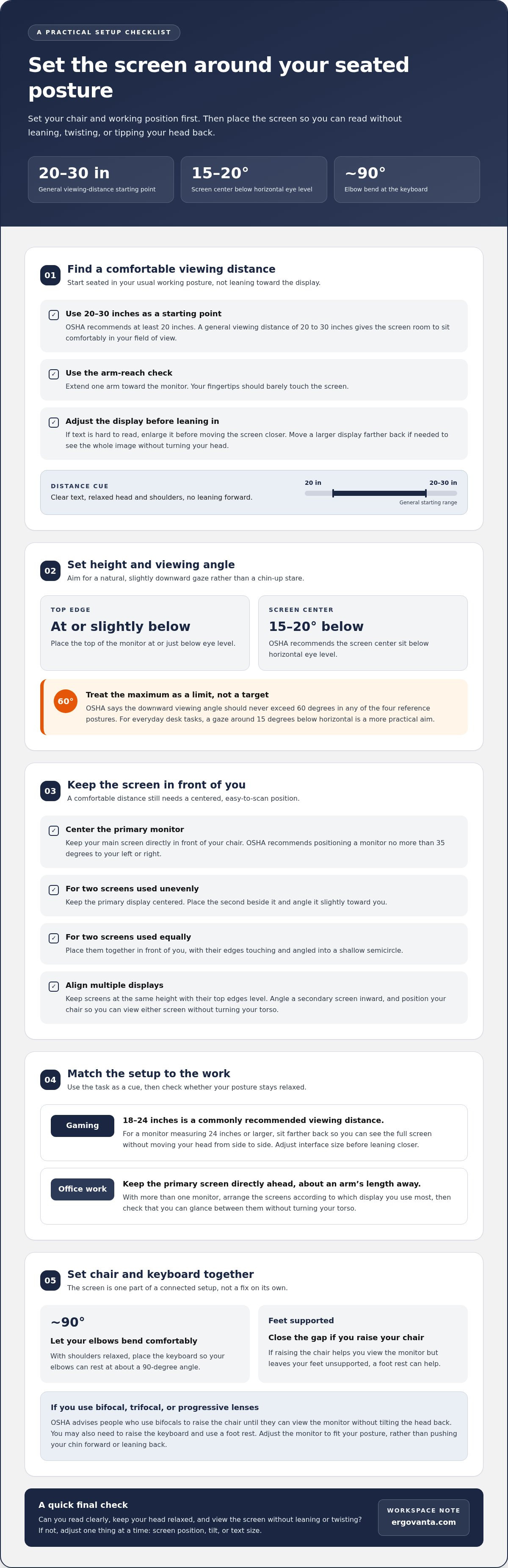
The best height for a computer monitor to prevent strain puts its top edge at or slightly below eye level, as the Occupational Safety and Health Administration (OSHA) recommends. OSHA also recommends placing the screen’s center 15 to 20 degrees below horizontal eye level. Aim for a natural, slightly downward gaze, not a chin-up stare.
Monitor height is only one part of a comfortable setup. A chair that makes you reach for the keyboard or a desk that puts your elbows in an awkward position can affect your posture and where your eyes meet the screen. The solution may involve more than adjusting the monitor.
This guide explains how to position your screen relative to eye level and viewing angle, and how to coordinate that position with your chair and desk. It also covers viewing distance and glare, so you can make practical adjustments for your work. Build the setup around a comfortable seated posture rather than making your neck and shoulders adapt to the screen.
Key Takeaways
- Set your screen so your gaze falls naturally downward, and keep the viewing angle within OSHA’s recommended limit.
- Place the monitor directly in front of you; arrange a second screen to the side if you use one.
- Adjust the monitor to fit your seated posture instead of leaning or tilting your head to meet the screen.
- Set up your chair and desk so your elbows can rest at about a 90-degree angle while you work.
- Reduce screen glare by placing natural light to the side, then consider task lighting for the rest of your workspace.
What should you know while setting up an appropriate viewing angle?
Set viewing distance and screen angle together, so you can read without leaning forward or tipping your head. The Occupational Safety and Health Administration recommends placing a computer monitor at least 20 inches from the user.
Monitor Distance From the Eyes
Monitor distance is the space between your eyes and the screen’s front surface. OSHA’s 20-inch minimum gives you a clear starting point, while your screen size and text settings help determine a useful position. Sit back in your usual working posture before measuring, rather than judging the distance while leaning toward the display.
A general viewing distance of 20 to 30 inches gives the screen room to sit comfortably within your field of view. For a practical check, sit back and extend one arm toward the monitor. Your fingertips should barely touch the screen. If you use a larger display, move it farther away so you can take in the whole image without turning your head.
Keep the monitor centered in front of you. A screen placed off to one side can prompt repeated neck rotation, even if it is at a comfortable distance. If text is hard to read, enlarge it before pulling the screen closer. This helps maintain a workable viewing distance without making details harder to see.
Viewing Distance and Eyestrain
Viewing distance affects how easily you can focus on text and images. A screen that is too close can make it harder to scan the full display; one that is too far away may lead you to lean forward. Either can disrupt a steady posture during desk work.
Use the 20-to-30-inch range as a starting point, then notice whether you can read ordinary text without leaning or squinting. If you catch yourself moving closer, enlarge the text first. If you move back repeatedly or turn your head to see screen edges, reposition the display. Those small observations help you find a visual distance that suits your task.
Distance also affects your viewing angle. A faraway screen may make you crane your neck, while a nearby one can dominate your field of view. Adjust the monitor position and text size together. Aim for a clear view with relaxed head and shoulders, rather than prioritizing a fixed measurement.
Recommended Screen Viewing Distance
A comfortable screen viewing distance is commonly about 50 to 70 centimeters, or roughly an arm’s length. The Occupational Safety and Health Administration recommends that a monitor’s downward viewing angle never exceed 60 degrees in any of the four reference postures. Treat that maximum as a limit, not a target for everyday positioning.
For most desk tasks, keep the screen directly ahead and let your gaze fall slightly downward. A viewing angle around 15 degrees below your horizontal eye line can make the display easier to scan without looking up. Check the distance while seated as you actually work, since reaching for the keyboard or leaning back changes where the screen appears.
Different tasks may call for small adjustments. Detailed work may be easier with larger text, while a wide display may need more space to keep its edges in view. Change one thing at a time: move the screen, adjust its tilt, or enlarge the content. Then check whether you can read without leaning forward or twisting your neck.
Monitor positioning for gaming and office work
Gaming and office work place different demands on your screen, but both need a position that lets you sit without twisting or reaching forward. Keep the main monitor directly in front of you. OSHA recommends positioning a monitor no more than 35 degrees to your left or right, so a screen far off to one side isn’t a good everyday viewing position.
For gaming, a commonly recommended viewing distance is 18 to 24 inches. That range can suit a setup where you focus on one display, but screen size and readability still matter. A monitor measuring 24 inches or larger should sit farther back, giving you room to see the full screen without moving your head from side to side. Adjust text or game interface size before leaning closer.
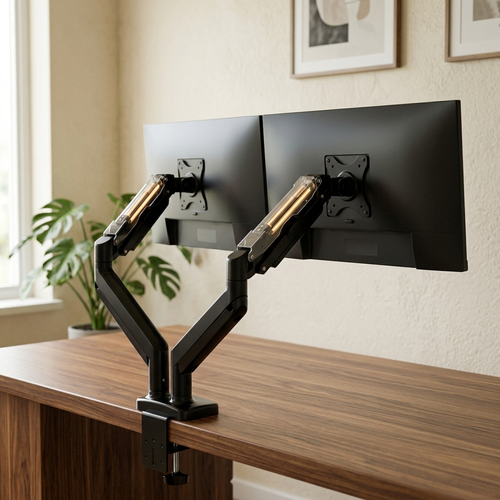
For office work, place your primary screen directly in front of your chair, about an arm’s length away. With two monitors, put the second beside the primary and angle it slightly toward you. This keeps your main screen centered and the other easy to glance at. If you use both equally, place them together in front of you, with their edges touching and angled into a shallow semicircle.
Keep multiple monitors at the same height, with their top edges level. A noticeable height difference makes your eyes and head move between different viewing lines. For example, if one screen is for documents and the other for video calls, align their top edges and angle the secondary display inward. Position your chair so you can view either screen without turning your torso.
Bifocal, trifocal, or progressive lenses can affect your comfortable screen position. OSHA advises people who use bifocals to raise the chair until they can view the monitor without tilting the head back; they may need to raise the keyboard and use a foot rest. You may also need to raise the keyboard and use a foot rest. Adjust the monitor to fit your posture; don’t compensate by pushing your chin forward or leaning back.
Check the keyboard and chair together. Sit with your shoulders relaxed, then place the keyboard so your elbows can bend at about 90 degrees. If raising the chair helps you view the screen but leaves your feet unsupported, a foot rest can help close that gap. Ergonomics is a set of connected positions, not a monitor adjustment in isolation. If you have a question about arranging your workspace, send Ergovanta a note.
Monitor height aligned with eye level
Set the display after choosing the posture and equipment you’ll use for the task. The Occupational Safety and Health Administration recommends locating the center of a computer monitor 15 to 20 degrees below horizontal eye level.
Setting Height for a Laptop Workstation
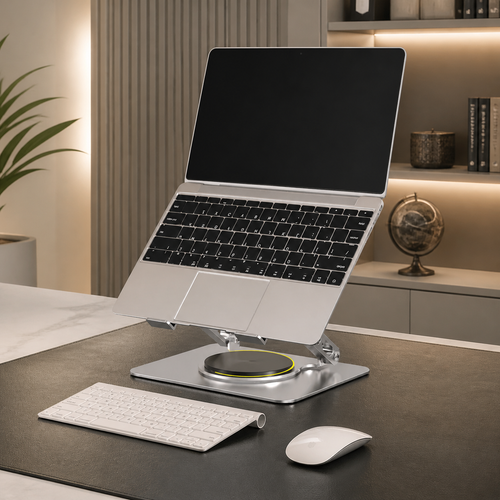
A laptop combines the screen and keyboard, so raising the screen also changes where your hands land. If you raise the laptop to improve screen position, use a separate keyboard to avoid reaching up to type. This lets the screen and typing surface occupy comfortable positions on your desk.
Before adjusting the screen, open the document or application you use most. Video calls, spreadsheets, and long text documents each bring different parts of the screen into regular use. Position the laptop for your main task, then make smaller adjustments for other activities.
Adjusting Height Without a Monitor Stand
You can adjust screen height without a dedicated stand by changing the support surface. Choose a stable, level base that holds the device securely, with its feet or base fully supported. Avoid loose stacks that might shift when you type or bump the desk. A wobbly screen is not a worthwhile trade for a better viewing position.
To find the best height for a computer monitor to prevent strain, check the screen while using your usual chair and desk setup. If the display is fixed, adjust your position only if you can still type comfortably and keep your feet supported. Change one thing at a time, then use the same document to assess the result.
Monitor height depends on where your eyes sit during the task, not on a standard desk measurement. At a shared workstation, readjust the setup when someone changes the chair. At home, note the chair and desk positions that work so you can restore them after moving equipment or clearing the surface.
Small adjustments are easier to assess than a complete rearrangement. Move the screen, pause, and read a familiar passage. Notice whether your head stays still or keeps shifting to find a comfortable position. If you use a laptop for both typing and viewing, separate input devices can give each task its own comfortable place.
Once the display feels right, consider what else is on the desk. Keep frequently used items within easy reach, and leave enough clear space to position the keyboard without crowding the laptop. That gives the screen adjustment room to work without creating another awkward position.
#2 Should You Look Up or Down at Your Computer Screen?
A slightly downward viewing angle is generally more comfortable than looking upward. The right position depends on your screen, seated posture, and corrective lenses.
Strain From Looking Up or Down
Looking up at a display can lead you to hold your head back, while looking too far down can pull your head forward. Either posture may add tension around your neck, shoulders, and upper back during desk work.
A study titled The Influence of Computer Monitor Height on Head and Neck Posture found that lower monitor positions promote a more natural gaze angle and reduce neck strain. The takeaway is not to place the screen as low as possible. Set it so your eyes can look downward without your chin following them.
Looking upward above horizontal can feel tiring, while looking downward more than 15 degrees below horizontal was not reported as particularly fatiguing. Your task matters, too: reading small text may draw you closer, while a broad display can encourage side-to-side head movement. Adjust the screen before letting your shoulders creep upward or your back round forward.
Monitor Top Position Relative to Eye Level
The Occupational Safety and Health Administration advises placing the monitor’s top edge at or slightly below eye level. This lets you look toward the screen’s center with a downward gaze instead of lifting your chin to see the upper portion.
Should the top of your monitor be at eye level or below? Aim for at or slightly below eye level, then check that the center is comfortably below your horizontal gaze. Both the monitor’s height and your seated eye level determine where the center falls.
For a large or portrait-oriented display, keep its top edge no higher than eye level. A screen that extends well above your natural line of sight may prompt repeated upward glances. If you wear bifocal, trifocal, or progressive lenses, placing the top edge slightly below eye level may help you see the screen without tilting your head backward.
Signs of Incorrect Monitor Height
Signs that a monitor is too high include lifting your chin, leaning your head back, or feeling your shoulders tighten while viewing the upper screen. A monitor that is too low may lead you to bend your neck, round your back, or lean forward to read.
What are the signs that a monitor is too high or too low? Look for repeated head tilting, leaning forward, or shoulder tension as you scan the display. If you notice these signs, move the monitor instead of changing your posture to meet it.
Try this check during a normal task: relax your shoulders and read from the screen’s center to its top edge. Your head should stay steady while your eyes move. If you need to nod, crane your neck, or shift your torso, adjust the monitor height and repeat the check in your usual sitting position.
Chair height and desk setup
A monitor can be positioned correctly and still feel uncomfortable if your chair makes you reach or slump. Treat the workstation as a connected setup: your chair, desk, keyboard, and screen all affect your posture. Start with a position you can maintain comfortably, then adjust the equipment around it.
Sit with your back supported and shoulders relaxed. Place the keyboard close enough that you can type without reaching forward. Your elbows should rest near your sides, with a 90-degree angle between your elbows and the desk. If the desk is too high, raising the chair may help your arms, but check whether your feet remain supported.
Chair height is a useful first adjustment because it changes where your eyes meet the display. Once your feet are supported and your arms reach the keyboard without raising your shoulders, position the screen for that seated posture. Don’t lift your chin or lean forward to compensate for a monitor that is too low or far away.
Does recommended monitor height differ for standing desks? The principle is the same: position the screen for a natural, slightly downward gaze from your current posture. Standing changes your eye level, so adjust the monitor after raising the desk. Check the screen while standing rather than relying on the position that worked while sitting.
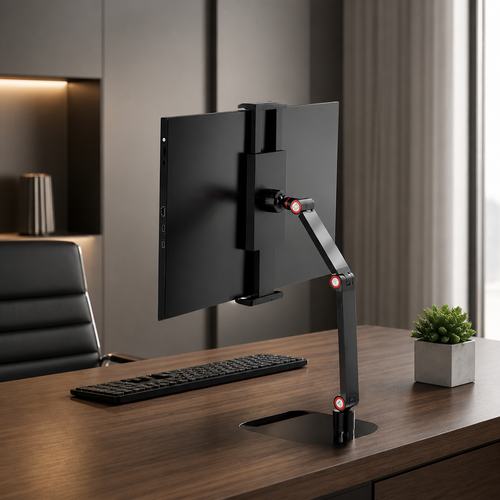
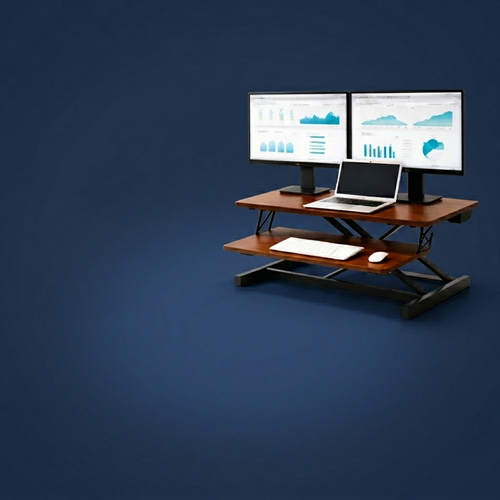
For a sit-stand workstation, treat each desk height as a separate setup. After changing position, check that you can reach the keyboard without stretching and view the display without tilting your head. If the desk moves but the monitor stays put, the relationship between your eyes and screen changes. A monitor arm or adjustable monitor stand can make these transitions easier to manage.
After each adjustment, do a quick posture check. Sit or stand as you normally work, relax your shoulders, and type a short passage. If your elbows drift away from your sides or your wrists reach forward, move the keyboard or change the desk height. Then reassess the screen from that position. Change one thing at a time so you can tell what improves the fit.
At a shared workstation, reset the setup whenever the next person changes the chair or desk height. A screen that suits one person’s seated eye level may be too high or low for another. First adjust the chair and keyboard for comfort, then reposition the display. This keeps the monitor from dictating an awkward posture.
Ergovanta: desk lamps
Once your monitor is positioned, Ergovanta’s desk lamps can add task lighting to your workspace. Lighting cannot replace a suitable screen height, but the direction of light can affect reflections and visual comfort.
Notice where daylight and room light fall across your display. Natural light works best from the side of the screen, rather than directly in front of or behind it. If a nearby window causes glare, adjust the shades or reposition your lighting. A desk lamp can add light where you need it, while floor lamps, wall lights, and ceiling lights help shape the room’s overall lighting.
Build the setup around the work you actually do, then make lighting adjustments that suit your space. Contact Ergovanta to discuss your workspace lighting.
Make the setup yours
Finding the best height for a computer monitor to prevent strain is one part of making your workspace work for you. Pay attention to how the whole space feels during a typical workday. Notice what distracts you, what feels awkward, and which small change could make the room more comfortable to use.
Lighting can also support a considered workspace. Ergovanta offers desk lamps, floor lamps, and wall lights to help you shape the light around your work. Choose what suits your room and tasks. You don’t need to redesign everything at once; build a useful space through practical choices.
Keep adjusting with intention. Your workspace should support the way you work, and you decide what belongs there.
Frequently Asked Questions
#4 How Far Should Your Computer Monitor Be From Your Eyes?
Place the screen about 20 to 30 inches from your eyes, with 20 inches as the minimum distance recommended by the Occupational Safety and Health Administration. The right spot also depends on whether you can read without leaning forward. For example, if a spreadsheet’s text looks small from that position, enlarge it before moving the monitor closer. This helps keep your viewing position steady while you work.
What Is the Recommended Height for a Computer Monitor to Prevent Neck and Eye Strain?
Position the screen’s top edge at or slightly below eye level, with its center below your horizontal gaze. For a quick check, sit in your usual working posture and look straight ahead. Notice where your eyes meet the display. If the top edge is above that line, lower the screen. If the center is difficult to view, adjust the monitor rather than tilting your head.
How Far Should a Computer Monitor Be From Your Eyes?
A viewing distance of about 50 to 70 centimeters is a practical starting point. To fine-tune it, sit back in your chair and extend an arm toward the screen. Your fingertips should barely reach the display. If you use a larger screen, move it back until you can see its edges without turning your head. Increase text size if details become difficult to read at that distance.
What Is the Recommended Monitor Viewing Angle for Ergonomic Posture?
Aim for a slight downward gaze toward the screen’s center. The Occupational Safety and Health Administration recommends locating the center 15 to 20 degrees below horizontal eye level, and says the downward viewing angle should never exceed 60 degrees in any of its four reference postures. For an everyday check, keep your head neutral while your eyes look down toward the display. Don’t treat the maximum angle as a target.
How Should Monitor Height Be Adjusted for Bifocal or Progressive Lenses?
Position the display so you can see through the appropriate part of your lenses without tilting your head backward. People who wear bifocals may raise their chair until they can see the screen with their head upright; the keyboard may need to rise too, and a foot rest can support their feet. With progressive lenses, test the screen while reading your usual text, then adjust its height until your neck feels relaxed.
Disclaimer
Ergovanta publishes these guides to help people set up better workspaces. Product recommendations reflect what we sell. Specifications, prices and availability are accurate at the time of writing and may change. Nothing here is medical, ergonomic or professional advice; if you have a specific health concern about your workstation, speak to a qualified professional.
From the catalog