October 17, 2026
Ergonomic Desk Setup Guide: Build a Workspace That Fits You
The best ergonomic desk setup isn’t bought all at once. It’s built around how you work, starting with the chair and equipment you already have. If you’re unsure where your screen should sit, how to position your keyboard, or what to adjust in a small or laptop-only space, this ergonomic desk setup guide gives you a practical place to start. Long hours can make small mismatches hard to ignore, but a full room makeover isn’t the first step.
A few considered adjustments can make your workspace feel more suited to your day. Work through the setup in a useful order: chair and feet, screen, keyboard and mouse, lighting, then accessories. Along the way, you’ll see how to work with the furniture you have and when a laptop stand, monitor arm, footrest, or seat cushion might address a specific need. Not every accessory earns a place on your desk. Choose what helps, leave the rest, and build a workspace you’re glad to return to.
Key Takeaways
- Use this ergonomic desk setup guide to arrange your chair, screen, keyboard, and lighting in a practical order.
- Look for signs of fit that feel right for you, such as relaxed shoulders and easy screen viewing, rather than chasing one perfect measurement.
- Compare laptop-only, laptop-plus-peripherals, and external-monitor setups to find an arrangement that suits your devices and available space.
- Adjust one element at a time so you can tell whether each change makes your workday feel better.
- Add a chair, stand, footrest, cushion, or light only when it addresses a real gap in your setup.
Why an Ergonomic Desk Setup Starts With How Your Workday Feels
An ergonomic desk setup isn’t a picture to copy. It’s an arrangement that helps you do your regular tasks without awkward reaching, constant repositioning, or holding one position longer than necessary. The useful question isn’t whether your desk looks ideal. It’s whether the way you use it feels workable through a typical day.
Ergonomics is the practice of arranging tools and furniture around the person using them, so everyday tasks feel more comfortable and manageable. That idea applies to desks as much as any other work setting. The Ergonomics overview offers broader context, but your first clues are closer at hand: how you sit, reach, look at your screen, and move through your work.
What an ergonomic desk setup means in everyday use
Start with your actual work, not a staged desk photo. You might switch between typing, reading, drawing, video calls, or working on a laptop in a limited space. A setup that suits one task or person may not suit another. Individual fit matters more than matching a single idealized arrangement.
Notice whether the things you use often are within easy reach, your screen is comfortable to look at, and your position feels natural rather than forced. These are general comfort cues, not medical advice or treatment. An ergonomic desk setup guide can help you review your surroundings, but it can’t diagnose or address a health concern.
Which setup problems are worth noticing first
Don’t start by shopping. Start by observing. During a regular work session, pay attention to small interruptions that repeat. They can point to a mismatch between your routine and your current arrangement, even if nothing in the room seems obviously wrong.
- Do you reach across the desk every time you use your mouse, notebook, or phone?
- Do you keep shifting your screen to read comfortably or move it out of glare?
- Do your feet rest unsupported, or do you change position to find a steadier seat?
- Do you lean forward or lift your shoulders during a task you do often?
Pick one typical work session and make a short note of what feels tiring or inconvenient. Separate the observation from the guess: “I keep moving the screen” is more useful than deciding what caused it. The same feeling can have more than one explanation, and a single chair, desk, or device choice doesn’t tell the whole story.
Then try the simplest adjustment available. Move an item closer, reposition the screen, or use furniture you already own to find a more workable arrangement. Change one thing at a time and notice how it feels during the task. A useful setup often begins with a small correction, not a replacement list. Keep what helps; let the rest earn its place.
How Chair, Screen, Keyboard, and Lighting Work Together
Your setup works as a system. A chair that lets your feet feel supported gives you a steadier base; from there, screen height and keyboard reach can help you keep your shoulders relaxed while you work. Adjust one part and another may need a small change too. The aim isn’t to hold a perfect pose. It’s to arrange your equipment so you can work without repeatedly leaning, reaching, or shifting to make the pieces fit.
When your chair, screen, keyboard, and light are placed to suit your tasks, it’s easier to settle into a workable position without forcing your body around the equipment. Use that as a starting point, not a rule that every desk must look the same. The OSHA Computer Workstation eTool offers general workstation guidance; your own comfort and routine help you judge how those ideas fit your space.
Chair and desk fit: support your seated position
Begin seated, with your back supported and your feet resting comfortably on the floor if they reach. Adjust the chair so your shoulders can drop naturally rather than creep toward your ears. Then check the desk: can your arms reach the keyboard without stretching forward or lifting your shoulders? If changing the chair height makes your feet dangle, a footrest can give them somewhere steady to land.
Let your usual work guide the fine-tuning. If you switch between typing and writing, notice whether the desk and chair still let you work without bracing your arms or hunching. A lumbar pillow or seat cushion may be worth considering if it addresses a specific support or seating preference, but neither is a required part of every setup.
Screen, keyboard, mouse, and light placement
Position the screen where you can look forward without tilting your head up, down, or to one side for long stretches. If you keep leaning closer to read, try adjusting the display’s position or viewing settings before assuming you need new equipment. With a laptop, its built-in screen and keyboard can make it harder to place both where they feel comfortable, so notice which part is asking for the most compromise.
Keep the keyboard and mouse close enough that your elbows stay near your sides and your shoulders remain relaxed. Your wrists should feel unforced as you type or move the mouse. Move frequently used items, such as a notebook or phone, into easy reach too. A small reach repeated throughout the day still counts as a reach.
Set task lighting to illuminate the work you’re doing, then check how it feels from your normal seated position. If the light feels too direct or distracts you while looking at the screen, adjust its position or direction. Test the arrangement while reading, typing, and using any paper materials you rely on. Ergovanta offers desk lamps and monitor light bars as workspace lighting options.
Which Ergonomic Desk Setup Fits Your Devices and Available Space?
The right arrangement depends on what you use, what you do, and how much room you have. A laptop-only desk keeps things simple, while separate peripherals or an external monitor give you more ways to position your screen and hands. There’s no universal winner. Use this ergonomic desk setup guide to compare the trade-offs, then choose what fits your tasks and the equipment already within reach.
The Mayo Clinic Office Ergonomics Guide also discusses workstation adjustments. Treat any general advice as a starting point, then consider how it works with your devices and available space.
Laptop-only desk setup versus a separate screen
A laptop-only arrangement is easy to keep compact, but its screen and keyboard are attached. Raising the screen can make typing less convenient, while keeping the keyboard at hand may mean looking down more than you’d like. If you work this way, notice which trade-off affects your usual tasks most. Occasional email may call for a different arrangement than extended writing or detailed work.
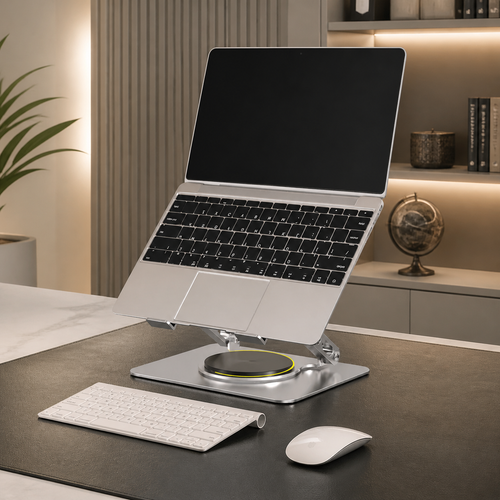
A laptop stand can raise the screen when paired with a separate keyboard and mouse. This takes up more surface area, but lets you place the display and input devices separately. Browse monitor and laptop stands as one way to make that arrangement work. An external monitor offers another screen option, though it also needs a place on the desk. Choose based on your routine, not on an assumption that more equipment automatically means a better fit.
Laptop-only: Few separate items and a compact footprint. Screen and keyboard positions are linked.
Laptop with peripherals: Keeps the laptop in use while allowing separate screen and input placement. Requires space for the stand, keyboard, and mouse.
External monitor: Gives the display its own position, with the laptop available as an additional device if useful. Needs room for the monitor and its supporting equipment.
A compact setup, a seated setup, or a sit-stand routine
On a small desk or shared surface, give priority to the things you use most. Keep your main screen and input devices in place, then move occasional-use items aside or store them when the work session ends. A notebook used all day deserves easy reach; a decorative object can wait for whatever space remains. Shared desks benefit from a layout that’s straightforward to reset, rather than one that depends on leaving everything out.
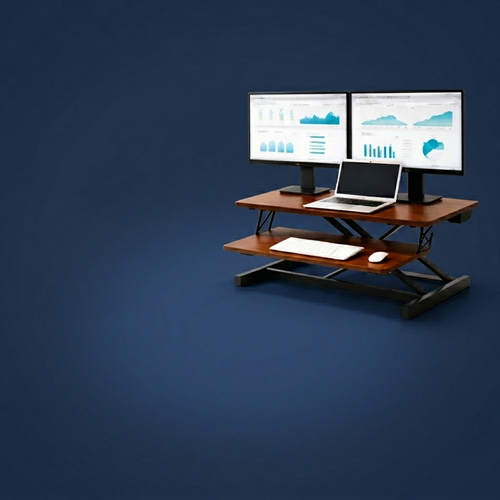
A fixed seated setup may suit your routine and available furniture. If you prefer to change position during the day, a standing desk or desk converter can provide a way to work standing as well as seated. Either option needs a layout that still works for your screen and input devices in both positions. Think about how often you’d realistically switch and whether the space can accommodate the change. A standing arrangement isn’t a requirement, and a seated one isn’t a failure. Build around the work you actually do.
How to Adjust Your Ergonomic Desk Setup in a Practical Order
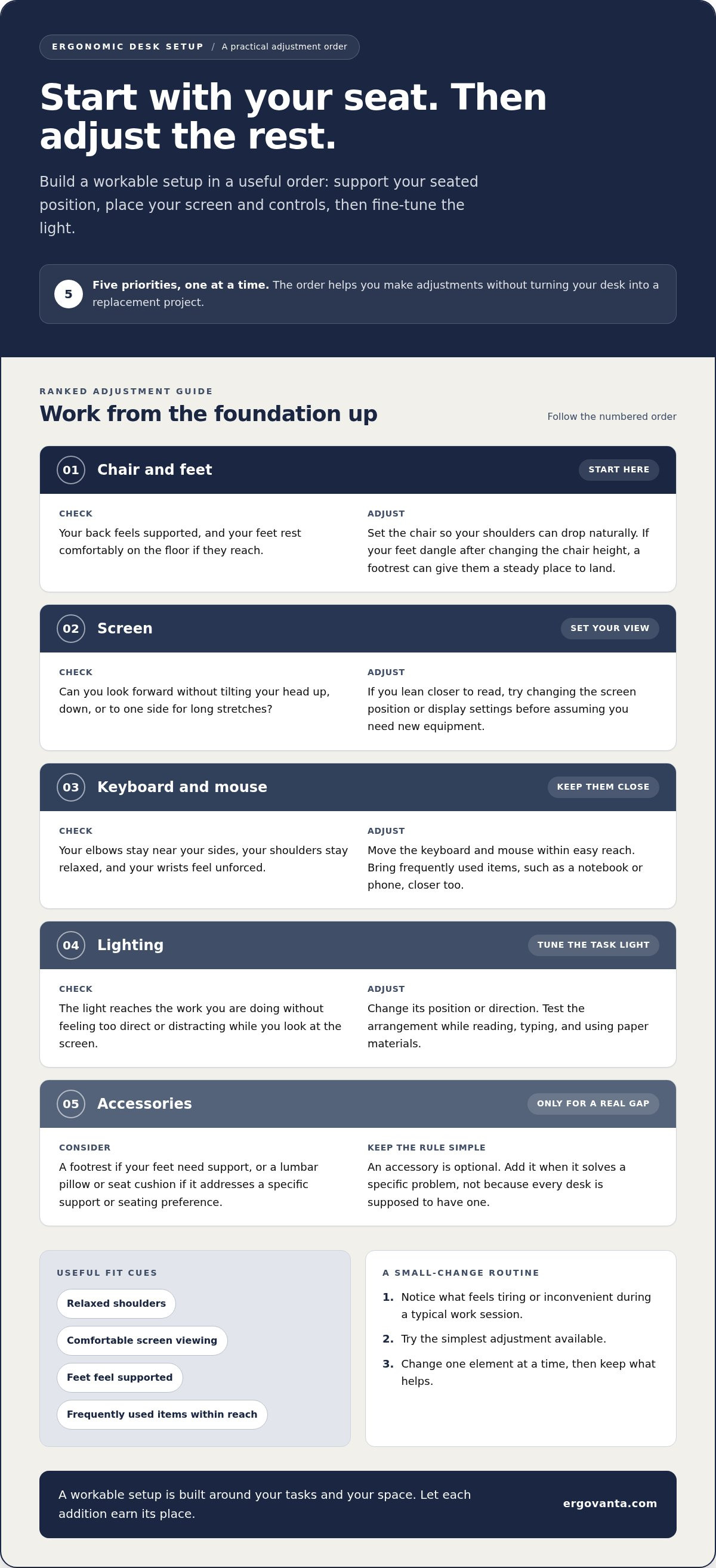
Make changes in sequence, not all at once. That way, you can tell which adjustment helps and avoid adding equipment to solve a problem that a small repositioning could fix. A useful setup starts with fit checks before accessory purchases. Treat this ergonomic desk setup guide as a hands-on process: adjust one element, try your usual work, then decide what still needs attention.
- Clear the space. Move aside anything you don’t use during a typical work session. Check that your legs have room and that the items you reach for regularly aren’t blocked by clutter. Keep the main work area practical, not showroom-ready.
- Adjust your chair. Sit in your usual working position and make small changes until your feet feel supported and your shoulders can relax. If your feet don’t reach comfortably after adjusting the chair, consider a footrest. Avoid changing several parts of the setup at once.
- Position your screen. Set the screen where you can view it without leaning forward or repeatedly tilting your head. Use adjustments already available, such as moving the monitor or changing the laptop’s position. A book or other stable support may work for a screen if it won’t wobble, slide, or create an unstable stack. Don’t improvise a support that could shift or fall.
- Arrange input devices. Place your keyboard and mouse where your hands can reach them without stretching or raising your shoulders. Move them only after the chair and screen are in place, since those positions affect where your hands naturally land.
- Review the lighting. Switch on the light you normally use and check how it feels while reading from the screen and any paper materials. Adjust the light’s position if the work area feels poorly lit or the lamp gets in your way.
Test the changes, then identify a specific gap
Now work through a task you do often, such as writing, reviewing a document, or joining a video call. Notice whether you still lean, reach, or shift to use something. Then recheck the arrangement after completing the task. A static diagram can’t show whether the layout works for your real routine; a brief trial can.
Separate a practical need from a style preference. If moving your current screen solves the viewing issue, a new stand may not be necessary. If there’s still no workable place for the screen, a stand or monitor arm might address that specific gap. If the setup functions well but you’d prefer a different look, that’s a valid preference too, just a different reason to make a change.
Change one element at a time and give yourself a chance to notice how it feels during ordinary work. If discomfort persists or raises concern, consult an appropriate health professional. Workspace adjustments are general guidance, not diagnosis or treatment.
Build Your Ideal Desk Setup, One Addition at a Time
Once you’ve adjusted what you already own, look at what still feels awkward or inconvenient. An accessory earns its place when it solves a specific problem in your daily setup, not simply because it appears on a checklist. A considered ergonomic desk setup guide is less about collecting equipment and more about making each item work for you.
Try to name the gap before choosing an addition. “I need to position my laptop screen separately from its keyboard” points to a practical need. “This desk could look more finished” is a different kind of preference, and that can matter too. Just know which one you’re addressing.
Choose accessories by the job they need to do
Match each possible addition to a clear task. Monitor or laptop stands can help place a screen where you want it, particularly when you use separate input devices. A footrest may be useful if your feet don’t rest comfortably in your seated position. Seat cushions and lumbar pillows are options to consider based on how you prefer your chair to feel. None is required for every desk.
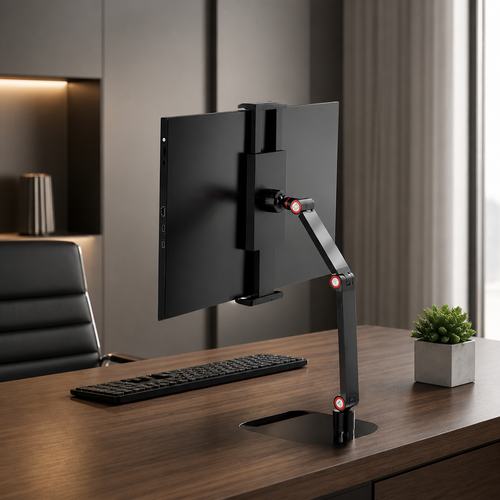
- Screen placement: Consider a monitor stand, laptop stand, or monitor arm if your display is difficult to position with the furniture you have.
- Seated comfort: Consider a footrest, seat cushion, or lumbar pillow if it addresses a specific fit or support preference.
- Work lighting: Consider a desk lamp or other suitable light if your current setup doesn’t illuminate the tasks you do.
- Desk clutter: Consider cable management if cords regularly get in your way or make the work surface harder to use.
Keep the test simple: what job should this item do, and how will you tell whether it’s useful? If you can’t answer either question, leave it off the list for now. The best additions are often the small objects that earn their place through use, not the ones that merely fill a corner.
Keep the setup useful as your work changes
Your setup may need a review when you change devices, tasks, rooms, or routines. A new screen can shift what fits on the desk; a change in your work may make a notebook or other tool part of your daily reach. Move frequently used items closer as those needs change, and set aside what no longer earns space.
After adding anything, try your usual work again and notice how the whole arrangement feels. If the item solves the gap without creating a new one, keep it. If not, adjust its position or reconsider whether it belongs there. Build a workspace that feels personal, works for your day, and is easy to return to—whether that means keeping surfaces minimal or adding creative accents like 3D scene stickers from KreativeWall.com.
Make Your Workspace Yours, One Thoughtful Choice at a Time
Your desk doesn’t need a final form. Work changes, rooms change, and the setup that suited one routine may feel less useful in another. Treat your space as something you can revisit: notice what’s working, make one considered adjustment, and keep the objects that help you do your day’s work.
Use this ergonomic desk setup guide as a starting point, not a template to follow forever. The goal isn’t to create a desk that looks like everyone else’s. It’s to build one that feels practical to use and worth returning to. Ergovanta offers workspace products including monitor and laptop stands, desk lamps, footrests, seat cushions, and cable management, so you can choose additions that fit your own setup rather than a universal checklist.
You don’t have to solve every detail today. Start with the change that would make the clearest difference, then let your experience guide what comes next.
Build at your own pace. A workspace that fits you is made one useful choice at a time.
Frequently Asked Questions
How should I position two monitors?
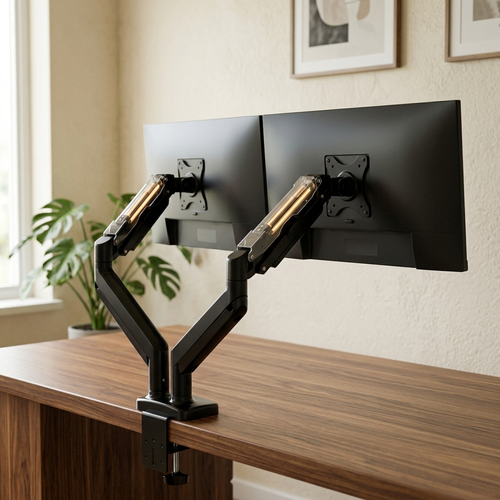
Place the screen you use most directly in front of you, with the second close beside it. If you use both equally, position the join between the screens in front of your seated position. Keep both displays at a comfortable viewing height and distance, then angle them to avoid repeatedly turning your head. Treat this as a starting point: adjust the arrangement for your tasks and notice whether switching between screens feels natural.
Can an ergonomic desk setup prevent back pain?
No desk arrangement can guarantee that back pain won’t occur or treat a medical condition. A setup that feels better suited to your work may make desk time more comfortable, but comfort depends on more than furniture, and people respond differently to the same arrangement. An ergonomic desk setup guide can offer general ideas, not a diagnosis. If pain persists, worsens, or concerns you, consult a qualified health professional rather than relying on workspace changes alone.
Should I use a wrist rest while typing?
A wrist rest is optional, not a requirement for every setup. First, check whether your keyboard and mouse are easy to reach and whether a hard desk edge is pressing against your wrists. If you use a rest, let your hands rest on it between typing rather than pressing your wrists down as you work. Pay attention to how your hands and arms feel, and adjust the arrangement if it feels awkward.
How can I reduce screen glare at my desk?
Notice when reflections show up, then check whether your screen faces a bright window or another strong light source. Try a small change to the screen’s angle or position and see whether the reflection shifts. You could also adjust the room lighting or reposition a task light. Change one thing at a time, then check the screen while doing regular work, such as reading a document or joining a video call.
Is a monitor light bar a replacement for a desk lamp?
Not necessarily. A monitor light bar and a desk lamp are different options, and either may suit some workspaces better than others. Start by identifying what needs light: the area around your screen, a notebook, or another part of your desk. Consider the layout and how the light feels during the task. Don’t assume one option will work for every screen, room, or type of work.
How often should I take a break from desk work?
There’s no single break schedule that suits every person or task. Use natural pauses, such as finishing a call or sending a piece of work, as reminders to change position, step away briefly, stretch gently, or look away from the screen. If you’re absorbed in a task, a calendar reminder can help you remember to pause. For specific health concerns or individual break guidance, ask a qualified health professional.
Disclaimer
Ergovanta publishes these guides to help people set up better workspaces. Product recommendations reflect what we sell. Specifications, prices and availability are accurate at the time of writing and may change. Nothing here is medical, ergonomic or professional advice; if you have a specific health concern about your workstation, speak to a qualified professional.
From the catalog