October 13, 2026
Ways to Organize and Hide Desk Cables: A Practical Guide
The neatest cable setup starts before you hide a single cord. The best ways to organize and hide desk cables begin with a clear route, not a pile of clips and ties. A cord tucked out of sight is only useful if you can still reach it when something needs unplugging.
Visible cords can make a desk feel busy, while tangled ones turn a simple swap into a small investigation. If your desk adjusts or your setup changes often, a fixed route can quickly stop making sense. The goal isn’t to hide every connection at any cost. It’s to give each cable a manageable path that stays accessible and out of your way.
This guide helps you plan routes around how you use your desk, choose organizers for the job, and keep power and device connections easy to reach. You’ll also find practical ways to account for changing equipment or desk height, so your system can adapt instead of becoming one more thing to redo.
Key Takeaways
- Sort devices and connections before hiding cords, so you organize what you actually use.
- Compare ways to organize and hide desk cables by the job each organizer needs to do, not by appearance alone.
- Plan a route from each device toward the desk edge and power source, leaving room for movement without extra loops.
- Unplug equipment before rearranging connections, then reconnect and test each device.
- Recheck your cable setup when you add equipment, change chargers, or move your desk.
Why Desk Cables Get Messy, and What to Sort Before Hiding Them
Cords cross the desk from a laptop to a charger, dangle below the edge, then gather in a knot near the outlet. It’s a familiar scene, especially when devices have been added one at a time. The tangle isn’t always caused by too few clips. Often, no one has paused to work out which connections belong in the setup and which cables are simply along for the ride.
Start with a quick cable audit. For each connection, note the device, what the cable does, where it connects, and how often you unplug it. A monitor cable that stays put has different needs from a phone charger you pick up each day. Those distinctions help you decide what to keep, what to remove, and which ways to organize and hide desk cables will suit the setup.
Cable management means routing and securing cords so they stay orderly without becoming hard to access. That balance is the point: less visual clutter, fewer mystery connections, and no need to dismantle the setup to unplug one device. The cable management principles offer a broader overview of the purpose and common approaches.
Start with the devices, not the cable clips
List the devices you use every day, then add occasional ones, such as a camera, drawing tablet, or external drive. Identify each cable’s destination before bundling anything. A label or simple note can help distinguish a display connection from a charging lead when both disappear behind the same monitor.
Separate active connections from spares, duplicates, and cables for equipment you no longer use. Set the latter aside rather than folding them into the working bundle. Your desk only needs to accommodate the setup you use, not every cable that has ever visited it.
Notice where clutter starts and where access matters
Look at the desk as you use it. Which cords cross the work surface? Which hang into your leg space, collect near an outlet, or catch on a chair or drawer? Note nearby outlets, desk edges, and furniture that could snag a cable. You’re mapping the actual problem, not planning a permanent renovation.
Mark connections you unplug often, including a headset, phone, or removable drive. Keep those within easy reach. Connections that rarely change can be grouped differently. This first look helps distinguish cables that need tidying from those that need a convenient place to land.
Before moving on, you should be able to answer four simple questions about each cable:
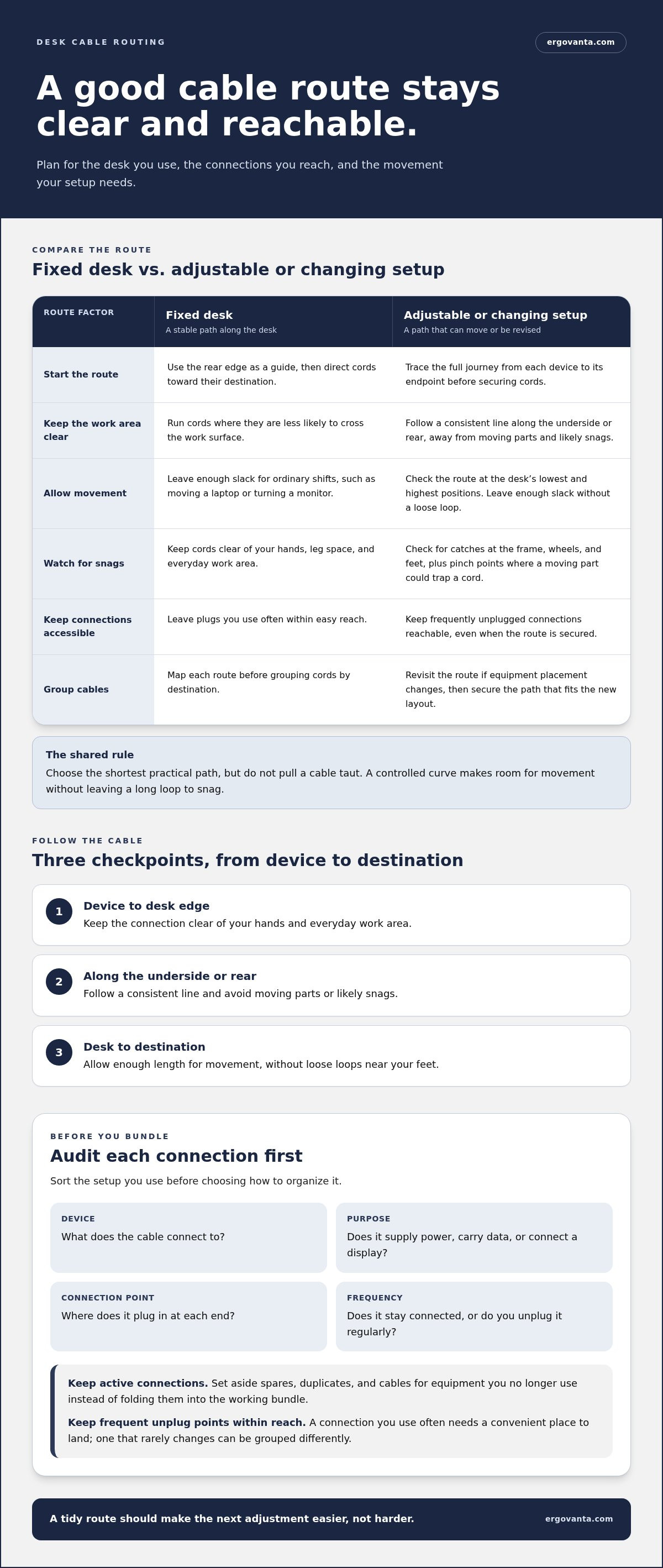
- Device: What does it connect to?
- Purpose: Does it supply power, carry data, or connect a display?
- Connection point: Where does it plug in at each end?
- Frequency: Does it stay connected, or do you unplug it regularly?
Once you know what stays and what needs to remain reachable, you can plan a cable setup around the desk you actually use.
Plan Desk Cable Routes Around Reach, Movement, and Equipment
Once you know which connections belong in the setup, plan where each one travels. Start at the device, follow the underside or rear edge of the desk, then continue to its power source or other endpoint. This route keeps cords from wandering across your work surface or forming loops below it. A useful route is easy to trace, not just easy to hide.
A good cable route stays out of the way while keeping the connections you need within reach. Aim for the shortest practical path, but don’t pull a cable taut. Leave enough slack for ordinary movement, such as shifting a laptop or turning a monitor. A neat route should serve the way you work, not make every adjustment feel like a negotiation with a cord.
Route cords for a fixed desk
For a desk that stays in one position, use the rear edge as a natural guide. Run cords along it where they’re less likely to cross your work area, then direct them toward their destination. Keep plugs for frequently used devices accessible. Map each route before grouping cords by destination, so a tidy bundle doesn’t become a guessing game later.
Leave room for an adjustable or changing setup
A sit-stand desk needs a route that can move with it. Check the cables with the desk at its lowest and highest positions. At both heights, confirm they have enough slack and don’t catch on the frame, wheels, or your feet. Watch for pinch points where a moving desk component could trap a cord. The route should remain clear through the desk’s full range, not just at your preferred height.
For any setup, trace the full journey from device to destination before securing a bundle. A cable that looks short on the desktop may need extra length to travel down a desk leg. Leave a modest, controlled curve where movement happens, rather than a long loop that can snag. If you change your equipment placement, such as using monitor and laptop stands, revisit the route from the device outward.
Use this quick path check before choosing where to secure cords:
- Device to desk edge: Keep the connection clear of your hands and everyday work area.
- Along the underside or rear: Follow a consistent line, avoiding moving parts and likely snags.
- Desk to destination: Allow enough length for movement, while avoiding loose loops near your feet.
These are practical ways to organize and hide desk cables without making access the price of a cleaner setup. If you’re planning cable management alongside a broader workspace change, Ergovanta’s workspace contact page is available for questions about your setup.
Choose Desk Cable Organizers by the Job Each One Needs to Do
Different organizers solve different problems. Some guide a single cord along a route; others gather several cables or conceal a bundle. Match the tool to the job, your desk layout, and how often you need to reach the connections. No single option suits every setup, and combining a couple of simple methods can work better than asking one organizer to do everything.
Use this comparison as a starting point for the ways to organize and hide desk cables that fit your space:
| Organizer | Useful for | Visibility | Access |
|---|---|---|---|
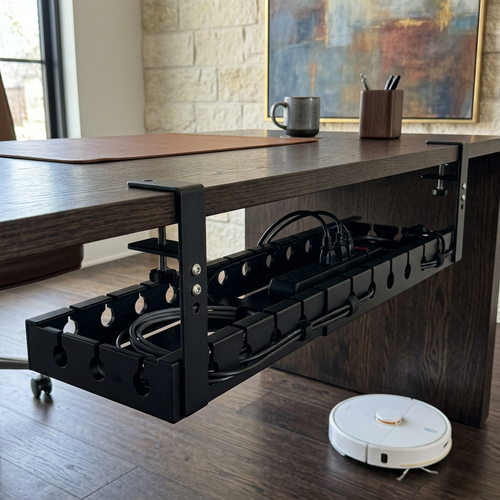
| Tray | Gathering several cords beneath a desk | Moves cables out of direct view | Depends on where and how it’s placed |
| Clip | Guiding an individual cord along a chosen path | Cord remains visible | Easy to reach along its route |
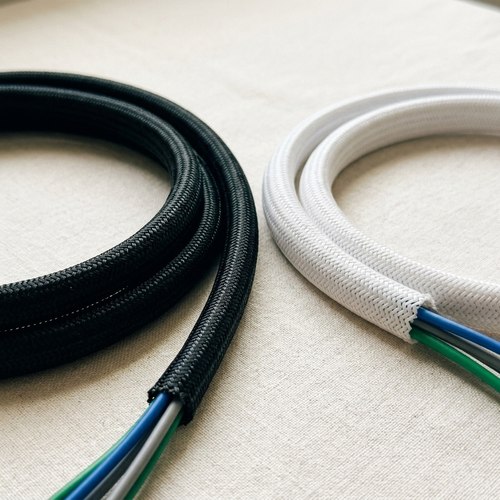
| Sleeve | Grouping multiple cords together | Bundles cords into one visible line | Individual cables may be less immediate to reach |
| Tie | Keeping a bundle together | Doesn’t conceal the bundle | Access depends on how tightly it’s grouped |
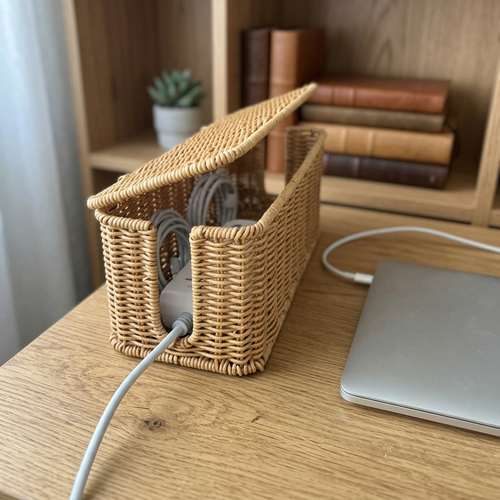
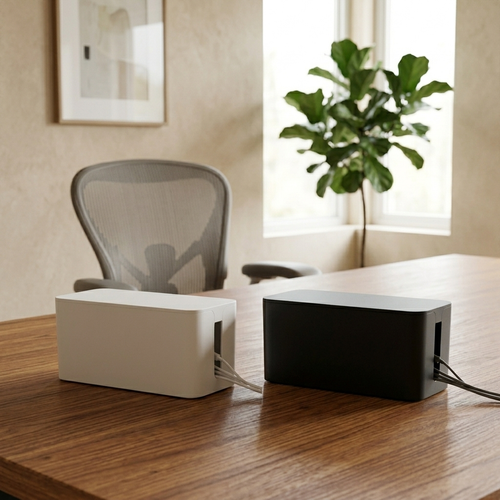
| Box | Concealing a cluster of cables | Hides the contents from view | Connections inside are less visible |
Choose by the job, not the name
A tray can gather cables beneath the desk, where the layout allows, while clips keep individual cords on a deliberate path, such as along the rear edge toward a device. Sleeves and ties group several cords together, but they don’t guide those cords across the desk by themselves. A box conceals a cluster rather than routing each cable. Pairing a guide with a bundling method can keep the route orderly without hiding every connection.
Include desk-related equipment in the layout, too. The tech and device accessories you use can affect where cords begin and which connections need to stay easy to reach.
Choose for access, reversibility, and the desk surface
Decide how much you want to conceal, then weigh that against how often you unplug or adjust each connection. A clip may suit a frequently used charging cord; a less-visible bundle may make sense for cables that rarely move. Keep access points open where you regularly connect equipment. Hiding a plug so thoroughly that you need a search party defeats the point. When power lines or extension cords simply have to remain in view, sourcing personalized or colorful options from fourmanindustries.com can turn an exposed run into an intentional accent.
Think about future changes, too. If equipment moves or your setup is still evolving, an organizer you can reposition may be more practical than one that commits you to a fixed route. Before choosing how to attach anything, consider the desk’s material and finish, and match the fixing method to that surface. Avoid assuming every attachment method will suit every desk.
Ergovanta’s cable management category supports a more considered setup: choose organizers for the routes and access you actually need, not simply because they promise to make every cord disappear.
How to Organize and Hide Desk Cables Step by Step
Turn your plan into a setup you can actually use. Work in order: prepare the connections, lay out the route, secure the cords, then test everything before putting tools away. These ways to organize and hide desk cables should make the arrangement easier to maintain, not harder to change.
- Record what connects where. Use your device list and route plan as a guide. If several cords look alike, label each end with its device or purpose before disconnecting it. A short label now can save a longer round of cable detective work later.
- Unplug equipment before rearranging connections. Disconnect the devices you’re moving, keeping track of which cable belongs to each one. If you’re unsure which cord to unplug, trace it to both ends rather than pulling at a crowded bundle.
- Position the organizers. Place or install each organizer according to its instructions and the desk’s surface. Check that the route stays clear of edges or moving parts before securing anything. If a position doesn’t work, adjust it now, while the cables are still easy to move.
- Guide and gather cords. Follow the route you planned. Use guides for cords that need their own path, then group related cables where they travel together. Keep bundles orderly, not tight, and leave practical slack so normal movement doesn’t pull at a connection.
- Keep useful access points open. Leave plugs you often use easy to reach. Make sure power connections aren’t buried behind furniture or concealed in a way that makes them awkward to inspect or unplug.
- Reconnect, test, and adjust. Reconnect each device and check that it works. Confirm every cord reaches without tension. If something pulls, snags, or blocks access, loosen the route and reposition it before settling the setup.
Secure the route without making future changes difficult
Let the desk and the organizer’s instructions guide placement. Group related cords neatly, but leave enough slack for ordinary use and any movement your setup requires. Avoid tight bundles, routes that can be crushed or snagged, and organizers that make a frequently used plug difficult to reach. A little access is useful. A cable bundle sealed away from its own connections is less so.
Test the setup before calling it finished
Give the desk a real-world check. Sit down, stand up, and move your chair as you normally would. Notice cords near your feet or knees, and watch for anything caught by a wheel or moving part. If the desk adjusts, move it through its full range while observing the cables. Make small changes until devices stay connected and cords move freely.
Once everything works, note any cable labels or route choices you’ll want to remember if equipment changes. A useful setup is orderly today and understandable later.
Keep a Clean Cable Setup That Still Feels Like Your Workspace
A cable setup isn’t finished forever, and that’s normal. Add a monitor, swap a charger, move your desk, and yesterday’s tidy route can become today’s awkward loop. Treat cable order as a small part of changing your workspace, not a one-time project that has to survive every setup forever.
A quick check after equipment changes keeps the arrangement useful. Look at what moved, what needs a new route, and whether each connection is still easy to reach. That small reset is more practical than waiting until cords have quietly reclaimed the floor.
Make cable checks part of normal desk changes
Whenever you replace or relocate a device, check its cable from end to end. Update any labels that no longer match, and see whether the cord still follows a clear route. If you remove equipment, verify that its cable is genuinely unused before taking it out of the setup. Similar-looking connections can serve different devices, so trace both ends before unplugging or discarding one.
Then check the parts that affect daily use. Can you reach the plugs you need? Do cords stay clear of your chair, feet, and knees? If your desk moves, do cables still move freely without snagging or pulling? The check can be brief. It only needs to catch small changes before they turn into a fresh tangle.
Equip the setup with only what earns its place
Keep the cable system proportionate to your actual equipment. A desk with a laptop and a lamp may need only a simple route and a few places to guide cords. A setup with several devices may benefit from gathering more cables together. More organizers aren’t automatically better; each one should make a route clearer, reduce interference, or preserve access.
That same rule applies to the desk itself. Build around the devices and routines you have, not an imagined setup that requires every accessory and cable to be hidden. Ergovanta’s cable management and workspace categories support a functional arrangement shaped around your work. Workspace essentials can sit alongside the route your cables need to take.
The useful ways to organize and hide desk cables are the ones that still make sense after your setup changes. Keep connections accessible, remove what you’ve verified you no longer use, and adjust the route when a device or desk position changes. The result doesn’t need to be flawless. It needs to work for the space you actually use.
Ergovanta’s workspace contact page is there for questions about your desk setup.
Build a Desk Setup Ready for What’s Next
Your workspace will keep changing. A new device, a different routine, or a move to another room can shift what you need from the desk. Treat each change as a chance to make the space work better for you, not as a reason to start from scratch. The most useful ways to organize and hide desk cables are the ones that leave room for your setup to grow and change.
Choose a simple standard you can return to: connections should be understandable, the desk should feel clear, and the things you use should stay within reach. That’s enough to make the next adjustment feel manageable. Your system doesn’t need to be elaborate to be considered. It just needs to make sense for the way you work now.
Build a setup that feels like yours, then let it change as your work does. A calmer desk is a good place to begin.
Frequently Asked Questions
How do you organize desk cables without drilling holes?
Use organizers that don’t require permanent holes, and route cords along the desk’s existing rear edge or legs. Cable ties or sleeves can group cords, while clips can guide individual leads if their attachment method suits the desk surface. For a rented desk or a setup you rearrange often, start with options you can reposition. The most useful ways to organize and hide desk cables don’t require altering the furniture.
Should desk cables be bundled together?
Bundle cords that follow the same route, but don’t gather every cable into one tight mass. Keep connections you unplug often separate, and avoid squeezing cords together so firmly that you can’t identify or remove one. For example, group display cables that stay connected, but leave a frequently used phone charger easy to pull free. A little separation makes future changes less frustrating.
How do I keep desk cables from tangling?
Give each frequently handled cable a predictable place to rest, such as a clear point at the desk edge, instead of letting it fall behind the desk. Keep spare cable length in a loose, contained coil rather than mixing it into the active cords. If a cable is regularly pulled across another, change where it begins or ends. Small, repeated crossings are often where a tidy setup starts to snarl.
Can cable organizers work with a standing desk?
Yes, as long as the route accounts for what moves with the desk and what stays put. If a power source or device moves with the desktop, check the connections between those moving parts. If a cord runs to a stationary outlet, give the section between desk and outlet room to travel. Keep the moving span clear of the frame so it doesn’t catch as the desk changes height.
How do I hide cables on a floating desk?
On a floating desk, route cords from the device toward the nearest wall edge, then keep the exposed section as short and orderly as your layout allows. A cable channel or sleeve can visually group the run, while nearby furniture may conceal part of it without blocking access. Leave enough slack at the desk connection to avoid pulling when devices shift. Keep plugs reachable rather than hiding them behind fixed furniture.
How often should I reorganize desk cables?
There’s no set calendar for cable reorganizing. Do a quick review after replacing a device, changing a charger, moving the desk, or rearranging your work area. During an occasional desk reset, look for cords that no longer serve equipment and verify both ends before removing them. If nothing has changed and every connection remains accessible, there’s no need to disturb a setup that’s working well.
Disclaimer
Ergovanta publishes these guides to help people set up better workspaces. Product recommendations reflect what we sell. Specifications, prices and availability are accurate at the time of writing and may change. Nothing here is medical, ergonomic or professional advice; if you have a specific health concern about your workstation, speak to a qualified professional.
From the catalog