October 22, 2026
Common work-from-home setup mistakes that can disrupt comfort
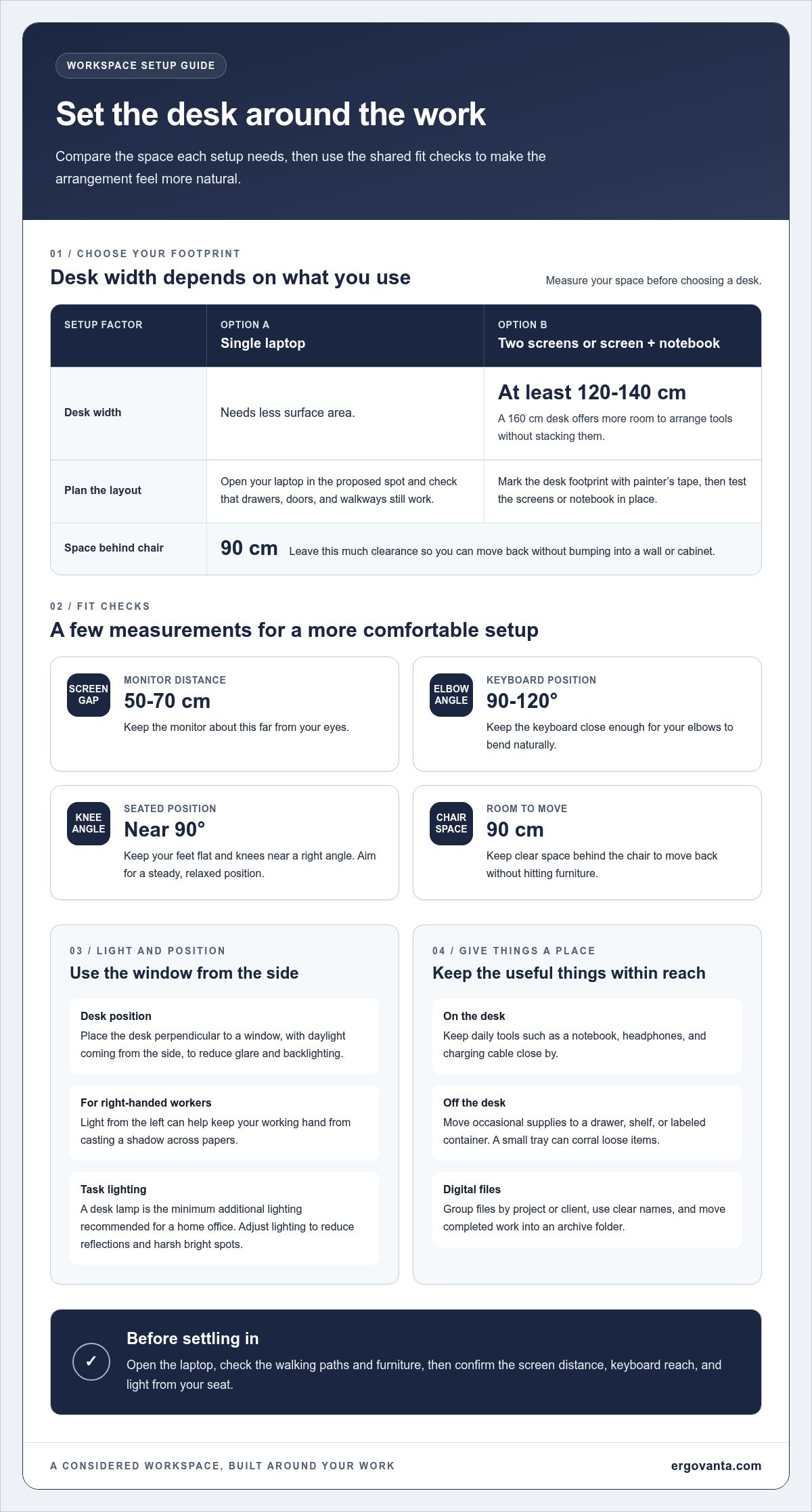
A neat desk can still be the wrong setup. The common work-from-home setup mistakes to avoid include poor monitor placement, an awkward keyboard position, distracting clutter, and unclear work boundaries. Keep your monitor about 50-70 cm from your eyes, and position your keyboard so your elbows can bend 90 to 120 degrees.
It’s easy to focus on what looks organized and miss what feels awkward after a few hours. A workspace should support the way you work, not just look ready for a video call. Learn how to organize your space, reduce household and digital distractions, set clear expectations, and position your monitor and keyboard more comfortably. Small, considered changes can make your desk more workable without turning the setup into a project of its own.
Key Takeaways
- Set your chair so your feet rest flat and your hips, knees, and ankles form comfortable right angles.
- Place your desk beside a window to help manage glare, and plan storage before work materials take over the surface.
- Use clear work hours and simple notification boundaries to make focused time easier to protect.
- Agree on household quiet time and team availability so fewer interruptions turn into missed expectations.
- Position your monitor about 50-70 cm from your eyes, and keep your keyboard close enough to let your elbows bend naturally.
Choosing a supportive desk chair and maintaining seated posture
A chair that looks right in a quick glance can feel wrong by the second meeting. For workdays lasting six to eight hours, choose a chair that supports your lower back and lets you adjust your position. Sit with your feet flat, knees near 90 degrees, and elbows around desk height. The aim is a steady, relaxed position, not a pose you have to hold rigidly.
Dining chairs aren’t designed for a full workday. If one is part of your current setup, notice whether your back feels unsupported or your feet dangle. Adjust your seat, add a footrest if needed, and change positions during the day. Before choosing a chair, check whether its adjustments suit your body and whether sitting in it creates pressure points.
For a visual guide to common desk setup errors, watch Reid Wilking’s video:
Affordable home office essentials include a supportive chair, a desk with enough surface area, and tools suited to your tasks. Costs depend on materials, adjustability, and what you already own, so set priorities before buying. Start with the item causing the most daily discomfort. A new chair won’t solve a desk that leaves your keyboard too high.
Measure your space before choosing a desk. A dual-screen or screen-and-notebook setup calls for at least 120-140 cm of width, while a single laptop needs less surface area. Leave 90 cm behind the chair so you can move back without bumping into a wall or cabinet. A tape measure and a quick floor plan can prevent a costly mismatch.
Choose tools to fit the work, not the other way around. Make a short list: laptop or monitor, keyboard, mouse, notebook, and any daily-use materials. Place the items you reach for often within easy reach; move rarely used supplies to a drawer. If you’re comparing seating options, the ergonomics and comfort collection is relevant to building a more considered desk setup.
Check your posture after opening emails or trying a long typing task. If you find yourself leaning forward, adjust the chair or desk before blaming your focus. Keep your feet supported, shoulders relaxed, and knees near 90 degrees. Small adjustments can make the setup feel more natural across a full workday.
2. Preparing the workspace and materials
Prepare the desk around the work you actually do. For two screens or a screen-and-notebook setup, 160 cm of desk width offers more room to arrange tools without stacking them. Before moving furniture, mark the desk footprint with painter’s tape. Sit in the proposed spot, open your laptop, and check whether drawers, doors, and walkways still work.
Window placement affects screen visibility and video calls. Position the desk perpendicular to a window, with daylight coming from the side, to reduce glare and backlighting. For right-handed workers, light from the left can help prevent the working hand from casting a shadow across papers. Test the position on a short video call before settling on it.
Plan where materials will go before they spread across the desk. Keep daily tools, such as a notebook, headphones, and charging cable, within reach. Store occasional supplies in a drawer, on a shelf, or in a labeled container. A small tray can corral loose items, while a dedicated folder keeps active papers separate from reference material. Storage works best when each item has an obvious place to return to.
Digital files need the same simple logic. Create folders by project or client, then use clear names such as “May meeting notes” instead of “final version 7.” Move completed work into an archive folder, and keep current files easy to find. At the start of a work session, write the day’s tasks in one note. That keeps open tabs from becoming your accidental filing system.
Layer lighting rather than expecting one ceiling fixture to handle every task. A desk lamp is the minimum additional lighting recommended for a home office. Use it to brighten paper or the keyboard area, while room lighting softens the contrast around the screen. A monitor light bar can also add task lighting at the display. Adjust each source to reduce reflections and harsh bright spots.
A rug can define a work zone in a shared room without adding a partition. If the kitchen table is your temporary desk, use a basket for work materials and clear it at day’s end. Before starting work, move unrelated clutter, open the files needed for your first task, and put water nearby. These small steps make the workspace easier to reset.
After arranging the room, check the view behind you and the light on your face during a video call. If the setup still feels difficult to organize, share your workspace question as you plan your next adjustment.
3. Setting boundaries to limit household and digital distractions
Give work a start signal and a stop signal. A short morning routine, such as making tea and opening your task list, signals that work has begun. Set general work hours on your calendar and share them with people who need to reach you. A visible schedule helps separate work time from personal time, even when both happen under one roof.
Household interruptions need a practical agreement, not a hopeful look over your laptop. Tell the people you live with when you need quiet, such as 10 AM to noon, and identify what counts as urgent. If a closed door is your signal, use it consistently. For shared rooms, agree on a simple alternative, like headphones meaning “please wait.”
Digital distractions are easier to manage when you remove their prompts. Turn off email notifications during focused tasks, close Facebook, and leave your phone out of reach. Frequent checks can break concentration, and a quick update can stretch into a long distraction. Use a timer for one task, then check messages during a planned pause.
Schedule breaks instead of waiting until your attention runs out. Set an alarm to remind yourself to stand and move. Regular short breaks can help you maintain focus, while too many can fragment the day. Choose a clear stopping point, such as stretching before returning to the next item on your task list.
Make the end of work visible. Spend the last 10 minutes reviewing what’s finished, recording unfinished tasks, and choosing a first step for tomorrow. Then close work tabs and shut down your laptop. A 15-minute walk can mark the transition from work time to personal time, rather than carrying the inbox into dinner.
Clear communication can help prevent office politics from filling gaps in remote work. Agree with coworkers on which channel suits urgent questions and which suits routine updates. Record decisions and task ownership in a shared written recap, so quieter teammates aren’t left relying on hallway context. If a disagreement surfaces in chat, move the conversation to a direct, respectful discussion and summarize the outcome afterward.
Keep the system simple enough to repeat. Choose work hours, one notification rule, and one end-of-day ritual, then use them consistently for a week. If a household interruption keeps recurring, adjust the agreement rather than silently absorbing it. Clear boundaries give your workday a frame, and help you leave it when the day is finished.
4. Managing household and coworker expectations
Working from home puts household routines and work deadlines in the same space. Make expectations specific before interruptions start. Tell household members when quiet time matters, such as 10 AM to noon, and explain what counts as urgent. If a child, roommate, or delivery needs your attention, agree on a signal or a clear way to reach you. “I’m on a call” gives more direction than hoping everyone notices your headphones.
With coworkers, set shared norms instead of assuming everyone interprets a green status dot the same way. Agree which channel is best for urgent questions, where project updates belong, and when a response is expected. Check in with each colleague on your direct team at least once a week. A brief note about priorities or a blocked task can surface confusion before it becomes a missed handoff.
Unclear expectations can lead to household interruptions, miscommunication, and missed deadlines. Start each workday by listing tasks, then mark the urgent or important ones. Break large assignments into visible steps, such as drafting, review, and sending. Starting early on a deadline-sensitive task leaves room for feedback or unexpected changes. Share progress before a coworker has to ask, especially when another person is involved.
Keep deadlines visible in one calendar or task list rather than splitting them across sticky notes, email flags, and memory. Record the due date, next action, and anyone waiting on your work. Review the list at the start of the day and when a new request arrives. If priorities conflict, tell your manager what is already scheduled and ask which task should move. That’s clearer than quietly missing a deadline.
A crowded desk can make shared expectations harder to meet. Give active papers one tray, store reference files together, and keep chargers in a consistent spot. Route cables along the desk edge or secure them together so they don’t snag when you move a laptop. In a shared room, a small work basket makes it easier to put materials away after hours. A clear surface also helps you notice what needs attention.
Use a brief weekly reset to keep the arrangement working. Check the calendar, clear finished tasks, return loose items to storage, and review any household or team agreements that caused friction. If a recurring interruption happens during a scheduled focus block, adjust the shared plan and communicate the change. A considered setup includes expectations, not just furniture and equipment.
5. Setting up monitor and keyboard ergonomically
Set the monitor where you can read without leaning toward the screen. Aim for about 50-70 cm between your eyes and the display. Keep the top of the screen around eye level, then adjust the viewing angle to limit reflections. If your desk is only 50 cm deep, the display may sit too close. A desk with at least 55 cm of usable depth gives you more room to position it comfortably.
Place the keyboard close enough that your elbows stay near your sides. Let them bend between 90 and 120 degrees, with relaxed shoulders and wrists. If you reach forward to type, move the keyboard closer before changing your chair. A separate keyboard can help when a laptop screen needs to sit higher. Keep your mouse beside it, not beyond arm’s reach.
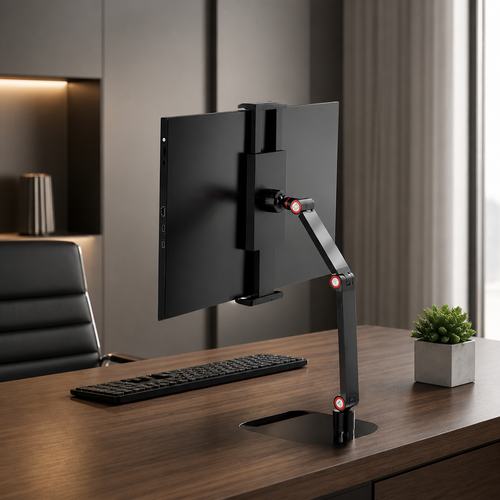
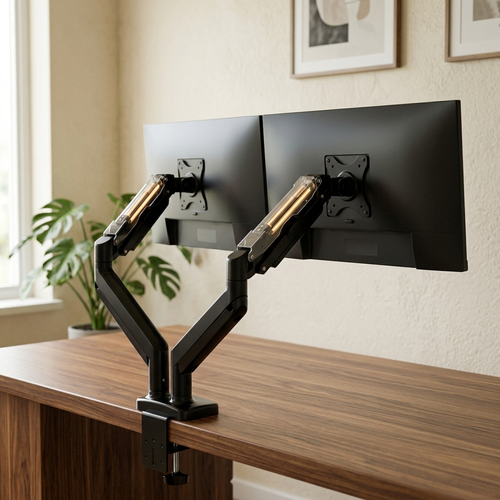
Check the arrangement during a real task, not just while looking at an empty desk. Type a short email, read a document, and switch between screens. If you repeatedly turn your neck, bring the primary display directly in front of you. A monitor stand or monitor arm can help adjust screen height and position. Keep frequently used notes near the display rather than tucked under the keyboard.
A dedicated workspace doesn’t require a separate office. A defined corner, a small desk, or one end of a kitchen table can work. Choose a spot where the screen faces away from busy household traffic. If the area needs to serve another purpose later, keep a basket for the keyboard, cables, and notebooks. That makes it easier to reset the space when work is finished.
Remote teams also need clear communication expectations. Agree which channel to use for urgent requests, where project updates belong, and how coworkers should signal availability. For example, a shared calendar can show meeting blocks, while team chat handles quick questions. Write down decisions and owners after a call, so people working different schedules can follow the same plan.
Set work hours that make the boundary visible. Add starting and finishing times to your calendar, and share them with coworkers who rely on your availability. At the end of the day, close work tabs, put the keyboard away, and note the next task. A consistent routine helps separate work from home time, even when both happen in the same room. Adjust the setup if your screen distance or reach feels awkward.
Ergovanta: desk lamps
Ergovanta offers desk lamps to add focused light to your workspace. If overhead lighting leaves your keyboard or notebook in shadow, a desk lamp can direct light toward the task. Depending on your layout, floor lamps, wall lights, and ceiling lights can also contribute to the room’s overall lighting.
Choose lighting based on how you use the space. Consider where daylight falls, where shadows gather, and whether the screen reflects a nearby light source. A considered setup can make reading, writing, and video calls easier without changing the whole room. Start with the area that feels least usable, then adjust from there.
For help exploring lighting options for your workspace, contact Ergovanta.
Build a workspace that keeps working for you
Your workspace doesn’t need a complete overhaul to feel more considered. Use common work-from-home setup mistakes to avoid as a prompt to notice what isn’t working, then make one intentional change. You might improve the light around your desk or choose a fixture that fits the way you use the room. The right setup is personal, practical, and can change as your work does.
Ergovanta offers desk lamps, floor lamps, and wall lights for workspace lighting. Choose the kind of light that suits the room and the tasks you do there. Explore the options and start with what would make your space easier to return to tomorrow.
Build your setup one considered choice at a time. Your workspace should work for you.
Frequently Asked Questions
Are You Making Any of These 5 Common Work-from-Home Mistakes?
Possibly, especially if your chair, desk, or routines developed by accident. Check whether your chair supports you, your workspace stays organized, interruptions have boundaries, coworkers understand your availability, and your screen and keyboard feel comfortable to use. For a quick self-audit, note what feels awkward during a typical workday, then change one thing at a time. Small adjustments are easier to assess than a full desk overhaul.
What are the most common work-from-home setup mistakes?
Common work from home setup mistakes to avoid include choosing a chair that doesn’t suit your sitting needs, placing the monitor too close, and letting clutter crowd out daily tools. Distractions and unclear expectations can also make a workspace harder to use. Look for patterns: do you keep shifting to read the screen, searching for a charger, or answering the same household question? Each repeated interruption points to a practical setup change.
How should you position a desk, chair, monitor, and keyboard ergonomically?
Arrange your workspace so you can work without reaching or twisting. Face the main monitor, bring the keyboard and mouse close, and keep frequently used items within easy reach. Sit with your feet supported and shoulders relaxed. If you use two displays, place the one you use most directly ahead, with the other beside it. Test the setup by writing a short note and switching between screens, then adjust anything that makes you lean or turn repeatedly.
What is the recommended monitor height and viewing distance for a home office?
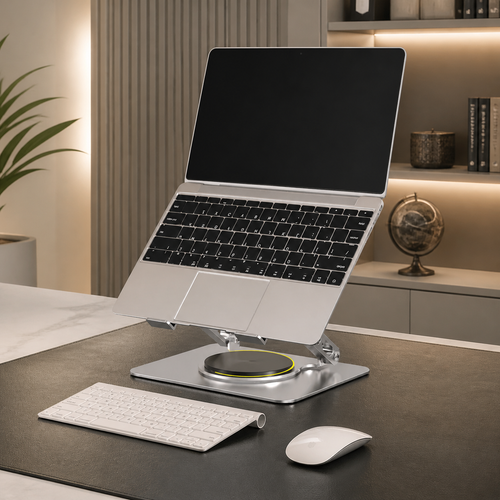
Place the monitor about 50-70 cm from your eyes, with its top around eye level. Adjust the screen so you can read without tipping your head forward or looking sharply upward. For a laptop, a stand can raise the display while a separate keyboard keeps typing comfortable. Check the position with a document open, since small text or a low screen can tempt you to lean closer.
How can you reduce back, neck, and wrist strain while working from home?
Notice which task brings on discomfort, such as typing on a raised laptop or turning toward a second display. Adjust your equipment before settling into that position for another long session. Keep your wrists relaxed while typing, change posture periodically, and take brief movement breaks. If discomfort persists or interferes with daily activities, seek appropriate health advice rather than treating desk adjustments as a substitute for care.
How can you improve lighting and reduce screen glare in a home workspace?
Place the desk perpendicular to a window so daylight comes from the side, rather than directly behind the screen or behind you during calls. For right-handed work, light from the left can reduce shadows across papers. Add a desk lamp to brighten close-up tasks, then reposition it if its reflection appears on the display. A short video-call preview can reveal harsh backlighting before you settle on the arrangement.
How can you reduce distractions, noise, and poor work-life boundaries at home?
Set a visible schedule and share focus periods with the people around you. For noise, choose a quieter room or use headphones as a clear signal that you’re concentrating. Silence nonessential notifications during focused tasks, and check messages at planned times instead of reacting to every alert. End the day by closing work tabs and writing down the next action, so unfinished tasks have a place to wait.
What safety risks should you check in a home office, such as cords and overloaded outlets?
Look for damaged cables, loose plugs, cords stretched across walkways, and outlets crowded with adapters. Route cables away from feet and chair wheels, and stop using equipment with visible damage. Don’t daisy-chain power strips or place cords where furniture can pinch them. Keep drinks away from electrical equipment, and follow the manufacturer’s instructions for each device and power accessory.
Disclaimer
Ergovanta publishes these guides to help people set up better workspaces. Product recommendations reflect what we sell. Specifications, prices and availability are accurate at the time of writing and may change. Nothing here is medical, ergonomic or professional advice; if you have a specific health concern about your workstation, speak to a qualified professional.
From the catalog