October 20, 2026
Ergonomic Desk Accessories for a More Comfortable Workstation
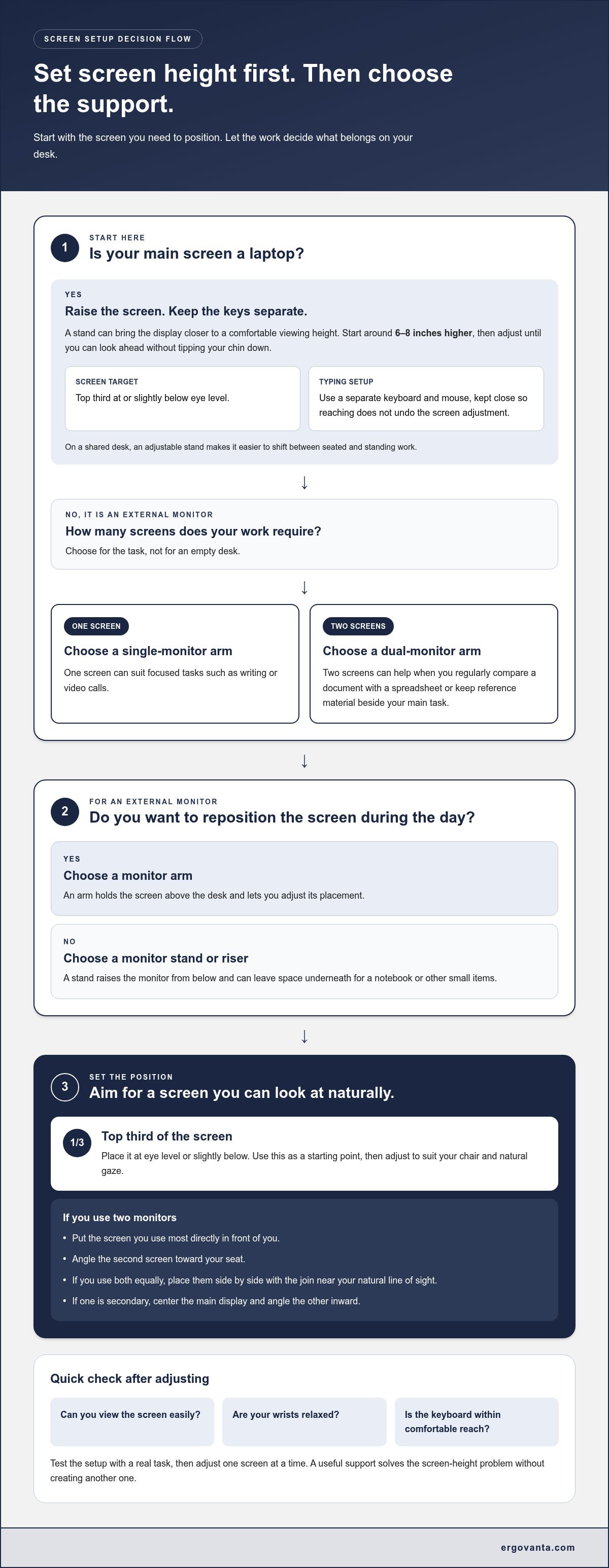
Your desk doesn’t need more stuff. It needs the right adjustments. Ergonomic desk accessories for home office work include laptop stands, monitor supports, footrests, seat cushions, and task lighting, each chosen to make your setup more comfortable for the hours you spend there. Position a monitor at eye level or slightly below it; a laptop stand can bring the screen closer to a comfortable viewing height.
It’s easy to focus on the desk or chair and overlook the smaller details that shape how working feels. A keyboard that leaves your shoulders tense, a screen that makes you look down, or a dim corner can all make a setup less comfortable. You don’t need to add every accessory at once. Start with the part of your workstation that feels most awkward, then choose a practical adjustment.
This guide covers accessories for screen position, typing, seating, lighting, and desk organization. You’ll learn what each can help with, what to consider before choosing, and how to build a workstation that suits you. Every item should earn its place, and your setup should support the work you actually do.
Key Takeaways
- Raise a laptop screen to make viewing more comfortable, then use a separate keyboard and mouse to keep your hands where they work naturally.
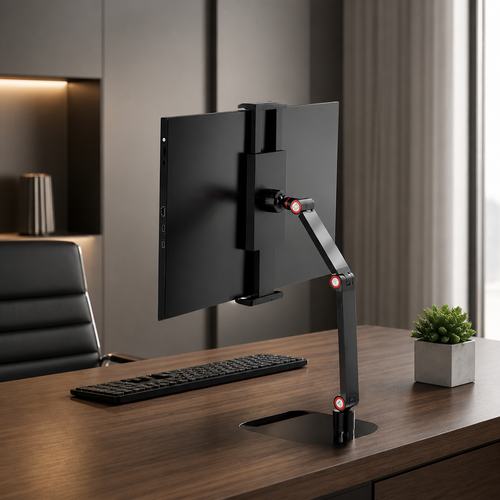
- Choose a monitor support that lets you position the screen at eye level and suits the number of screens you use.
- Set up your keyboard and cables to keep your hands comfortable and your desk clear, without adding accessories that get in the way.
- Use a footrest when your feet need support, and choose lighting that helps your workspace feel easier to use throughout the day.
- Start with the part of your setup that feels most awkward, then add only the accessories that earn their place.
1. Laptop stands for portable ergonomics
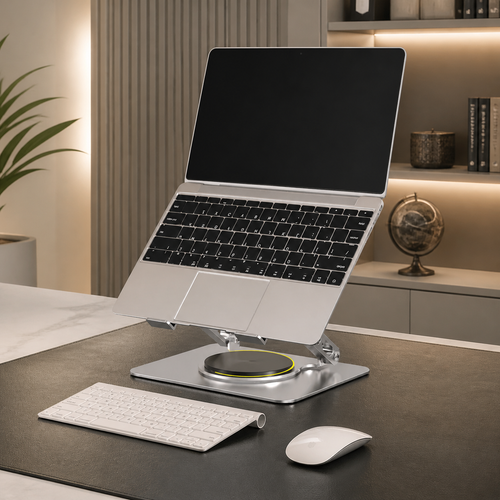
A laptop is easy to move, but its screen and keyboard are joined at the hinge. Raising the screen also raises the keys, which can leave your wrists and shoulders at awkward angles. When using a stand to lift the display, pair it with a separate keyboard and mouse. That way, you can position the screen for viewing while keeping your hands lower for typing.
Start by setting the laptop screen around 6-8 inches higher on a stand, then adjust until you can look ahead without tipping your chin down. Aim for the top third of the screen at or slightly below eye level. On a shared desk, an adjustable laptop stand makes it easier to shift between seated and standing work. Keep the keyboard and mouse close, so reaching for them doesn’t undo the screen adjustment.
For a real-world example of a multi-device setup, watch HAMY LABS demonstrate a work-from-home desk:
A standing desk changes your working position, but standing still can bring its own fatigue. An anti-fatigue mat at least 3/4 inch thick provides a more forgiving surface underfoot. One reported setup allowed standing for 2-3 hours with a quality mat. Treat that as an example, not a reason to stay planted. Shift positions, sit when needed, and get up to walk for 2-3 minutes every hour.
Balance boards add movement while standing, but they’re optional, not essential ergonomic accessories. Begin with short periods and keep the desk and nearby floor clear. If balancing distracts you from typing or makes your stance feel unsettled, step off and return to the floor. The right setup lets you work without constantly thinking about your feet.
A CPU holder, cart, or stand can move a desktop computer off the main work surface. That frees room for a keyboard, notebook, or mouse, and can make cables easier to route. Choose a position that keeps the computer accessible without putting it where your feet or chair will bump it. For a portable workstation, laptop and device accessories can help keep the essential parts of your setup together.
Test the arrangement with a real task, such as answering email or editing a document. After adjusting the stand, check that the screen is easy to view, your wrists feel relaxed, and the keyboard is within comfortable reach. A laptop stand is useful when it solves a screen-height problem without creating another one.
2. What's the Difference Between the Single Monitor Arm and Dual Monitor Arm, and Which Should I Choose?
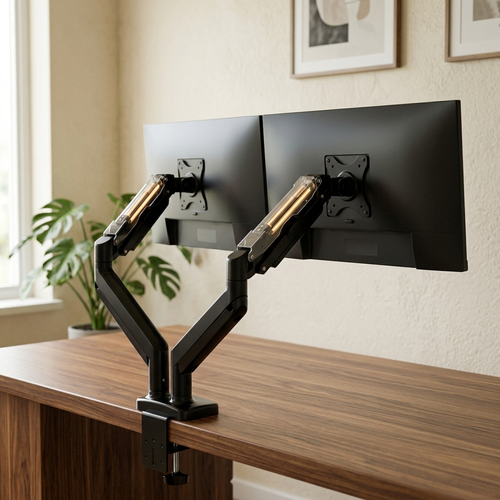
A single monitor arm holds one screen; a dual monitor arm holds two. Choose based on how many screens your work requires, not how impressive two arms look on an empty desk. One screen suits focused tasks such as writing or video calls. Two can help if you regularly compare a document with a spreadsheet or keep reference material beside your main task.
Start by positioning the screen. Place the monitor at eye level or slightly below it, with its top third at or just below eye level. Use this as a starting point, then adjust the screen to suit your chair and natural gaze. With two monitors, put the one you use most directly in front of you. Angle the second toward your seat instead of twisting your body to see it.
A monitor arm and a monitor stand solve positioning differently. An arm holds the screen above the desk and lets you adjust its placement. A stand or riser raises the monitor from below, often leaving space underneath for a notebook or other small items. Choose an arm if you want to reposition the screen during the day; choose a riser if a stable raised platform better suits your routine.
With two monitors, align the screens so switching between them feels easy. If you use them equally, place them side by side with the join near your natural line of sight. If one is secondary, center the main display and angle the other inward. A triple-monitor stand may suit a three-screen setup, but first consider whether each display deserves the desk space.
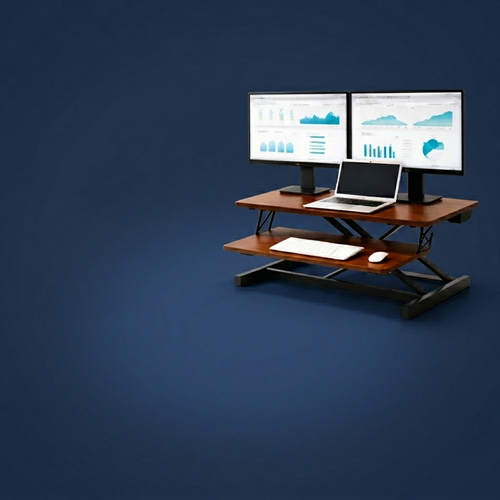
A laptop beside an external monitor needs its own positioning plan. Raise the laptop screen to match the main display, or use the laptop for tasks that require less viewing time. Keep the keyboard and mouse close so you don’t have to reach. If changing screen height affects how you sit, check that your feet still rest comfortably. A footrest can support them if your desk or chair leaves them unsupported.
Test the arrangement with a real task, such as reviewing a document across two screens. Notice whether you turn your head repeatedly, look down, or reach around the monitor base. Then adjust one screen at a time. If a monitor stand fits your setup, get in touch about your workspace as you consider the next change.
3. Adjustable and pull-out keyboard trays
A keyboard tray can bring your typing surface closer without changing your desk height. Pull it out for a work session, then slide it away to clear space. An adjustable tray also lets you change its height or angle, which may help if a fixed desktop leaves your shoulders raised or wrists bent. Before choosing one, check that it fits your desk and has room for both keyboard and mouse.
Set the tray so your shoulders can relax and your wrists feel comfortable as you type. Keep the keyboard in front of you, with the mouse beside it and close enough to reach without stretching. If you use the number pad often, for example, place it on the side that’s easiest to reach. Aim for a position you can maintain during ordinary computer work, not one that merely looks right in a diagram.
A standing desk adds another adjustment. When you move from sitting to standing, reset the tray height instead of keeping your hands in the old position. Type a short email in each posture and notice whether your wrists bend or your shoulders creep upward. Make one small adjustment, then test again. You can keep the screen at a comfortable viewing height while moving the keyboard to suit your arms.
Split keyboards separate the keys into two sections, allowing each hand to sit at a slightly different angle. The layout may feel unfamiliar at first, especially if you’ve used a standard keyboard for years. Try it with a familiar task, such as writing a short message, and notice whether your wrists feel more natural. A split design isn’t automatically a better fit; choose what lets you type without forcing your hands into an awkward position.
Wrist rests can support your hands during pauses between typing. Position one so it doesn’t push your wrists upward while you type. For example, place it just behind the keyboard and let your hands move freely over the keys. If it makes you press your wrists into the surface or reach farther, reposition or remove it. An accessory should reduce friction, not add another habit to manage.
Keyboard shape matters, too. Some ergonomic designs use a split layout or curved key arrangement; others keep a familiar shape but change the spacing. Check how the keys feel during a real task, not just at a glance. A tray is useful if it helps position the keyboard and mouse at a comfortable height, but it isn’t essential for every desk. Keep things simple: position the keyboard, notice how your wrists and shoulders feel, and adjust until typing feels natural while sitting and standing.
4. What are ergonomic desk accessories?
Ergonomic desk accessories are practical additions that help your workspace suit the way you work. A cable management accessory, monitor light bar, or desk organizer can reduce clutter or improve viewing without replacing your desk. Start by identifying a specific problem, such as a cable crossing your writing area, then choose an accessory that addresses it.
Start cable management by tracing each cord from its device to the outlet. Group cables that follow the same route, then secure them along the desk edge or behind a leg. Leave enough slack for a standing desk to move without pulling connections. Keep power cords out of the area where your feet and chair move. A wireless charger can reduce the number of charging cables, but it still needs a clear, reachable spot.
Desk organizers work best when each item has an assigned place. Keep frequently used tools, such as a pen and notebook, within reach; store occasional supplies elsewhere. A small whiteboard can hold a current task or reminder, while a tray gathers loose notes. Don’t let storage block your view of the monitor or crowd the keyboard. An organizer should free up usable space, not become another pile.
For a small home office, choose compact accessories that solve a specific problem without taking over the work area. A cable management accessory, slim desk organizer, or wireless charger can help tidy a limited surface. Prioritize what clears your main task area first, such as moving charging cables away from where you write.
For a US workspace, a practical shortlist might include cable management, a desk organizer, and a monitor light bar, if each addresses a real need. Product ratings alone won’t tell you whether an item suits your desk, devices, or routine. Consider what problem you want to solve, then choose an accessory that fits your workspace.
Don’t buy accessories just because they look organized in a photo. A riser that places a screen too high, a lamp that creates glare, or a tray that crowds your keyboard can make viewing and posture less comfortable. Test each change while doing a real task, such as typing or reading. Adjust or remove anything that adds strain instead of making the setup easier to use.
Lighting also affects how a workspace feels during screen-based tasks. Position a desk lamp to illuminate paper without reflecting across the monitor. If a bright patch appears while you’re viewing a document, shift the lamp to the side and check again. Keep the screen clear, frequently used tools close, and cables out of the way. That’s organization designed for work, not just for a photograph.
5. Ergonomic footrests and wheeled footstools
A footrest can help when your feet don’t reach the floor comfortably from your chair. Place it under your desk and rest both feet on it while sitting. Your knees should feel relaxed, not pushed upward, and your legs shouldn’t be locked into one position. If your feet already rest comfortably on the floor, a footrest may only take up space.
Choose a stable surface that stays in place. A wheeled footstool can move aside when you need more room, but it shouldn’t roll away under ordinary foot pressure. Test it by resting both feet on it, then shifting them naturally. A fixed footrest is a better fit if you want consistent support and don’t need to move it between tasks.
Comfort also depends on movement. During a long workday, change your foot position instead of holding one posture for hours. A rocking footrest or foot massage board offers a different surface while you’re seated. Keep the movement gentle enough that it doesn’t distract you from typing or make your chair drift. If the accessory keeps demanding attention, it isn’t earning its place.
Consider your whole lower-body setup before adding a footrest. Adjust your chair first, then check whether your feet rest naturally and your thighs feel supported. If raising the chair helps you reach the desk, a footrest can bridge the gap to the floor. If it crowds your legs or pushes your knees too high, revisit the chair height instead of trying to solve every mismatch with another accessory.
What should you look for in an ergonomic office chair cushion and lumbar support? Choose a cushion that sits securely on your chair without making the seat feel too high or unstable. A lumbar pillow should rest against your lower back without pushing you forward. Adjust its position until your back feels supported while sitting.
Try a footrest during an ordinary task, such as reading a document or answering email. Notice whether your feet stay supported as you move and whether the footrest shifts underfoot. For a shared desk, choose a design that’s easy to move and return to its place. For a dedicated workstation, a steady surface may suit your routine better.
Keep the setup neutral. Your feet need somewhere to rest, but you should still be able to change position and stand when you choose. Match the footrest to your chair, desk clearance, and preferred movement. One well-chosen support can make sitting feel more settled; a collection of mismatched boards can make the floor plan confusing.
Ergovanta: desk lamps
Ergovanta offers desk lamps for workspaces that need focused light. If your setup leaves paperwork dim or casts shadows across your keyboard, a desk lamp can direct light toward the task. Position it to illuminate the work surface without reflecting across your screen.
Choose lighting to suit the room. A floor lamp can add light beside the desk, while wall lights or ceiling lights can brighten the wider workspace. These options help create a considered setup instead of relying on a single overhead light for every task.
For a desk lamp or another lighting option that fits your space, contact Ergovanta.
Build a setup that keeps working for you
Your workspace doesn’t have to be finished all at once. As your routine changes, notice what interrupts your focus or makes the room harder to use. Adjust one thing, live with the change, and keep what genuinely helps. The right ergonomic desk accessories for a home office suit your habits, available space, and the work in front of you.
Treat the next adjustment as a small experiment, not a full-room reset. Keep what works and let the rest go. A workspace feels more personal when every object has a reason to be there.
Build it at your own pace, and make it a place you’re glad to return to.
Frequently Asked Questions
What are ergonomic desk accessories?
Ergonomic desk accessories are add-ons that help a workstation suit its user and daily tasks. Examples include a document holder that keeps reference pages visible, a headphone stand that clears space beside the keyboard, and a footrest for feet that don’t reach the floor comfortably. They don’t need to look technical. A useful accessory solves a specific problem without making another part of the setup harder to use.
What's the Difference Between the Single Monitor Arm and Dual Monitor Arm, and Which Should I Choose?
A single monitor arm supports one screen, while a dual arm supports two. Choose a single arm if one display handles your regular tasks; choose a dual arm if you often compare separate sources, such as a design file and its reference material. Before deciding, consider your desk space and screen habits. A second display used only occasionally may not need a permanent spot on your work surface.
What ergonomic desk accessories are most useful for a home office?
The most useful ergonomic desk accessories for a home office depend on what currently interrupts your work. If you switch between video calls and focused tasks, a headphone stand keeps your headset easy to reach without taking up keyboard space. If charging cables clutter the desktop, a wireless charger may simplify that corner. Choose accessories based on your tasks and available space, adding them one at a time so you can tell what genuinely helps.
How much do ergonomic desk accessories cost in the United States?
There isn’t one useful price for every ergonomic accessory in the United States. A basic organizer, a footrest, and an adjustable monitor support are different products with different materials and mechanisms. Compare items within the same category, and consider how often you’ll use the feature you’re paying for. Start with the workstation issue that affects your routine most instead of treating a full set of accessories as necessary.
How do monitor stands and laptop risers improve desk ergonomics?
Monitor stands and laptop risers change screen position, helping you arrange your work area around your natural viewing position. They can also free up space beneath a raised display for a notebook or dock. A laptop used mainly for video calls, for example, may need a different setup from one used for writing. Match the support to your device and task, and use a separate keyboard when raising the laptop.
How should I position my monitor, keyboard, mouse, and chair for proper ergonomics?
Begin with the monitor about an arm’s length away, then place the keyboard and mouse within reach so you don’t need to lean. Adjust your chair so your back feels supported and your feet have a stable place to rest. While typing, aim for relaxed shoulders and wrists that don’t feel bent or strained. Try the arrangement during a normal task, then adjust what feels awkward instead of changing everything at once.
Are standing desk mats and footrests worth buying for a home office?
A mat or footrest can be useful if standing feels tiring on a hard floor or your feet lack support while seated. A mat provides a different surface for standing; a footrest bridges the space between your feet and the floor. Neither replaces changing positions during the workday. Consider your routine: if you rarely stand, a mat may not earn its space, while a footrest helps only if your seated setup calls for one.
Disclaimer
Ergovanta publishes these guides to help people set up better workspaces. Product recommendations reflect what we sell. Specifications, prices and availability are accurate at the time of writing and may change. Nothing here is medical, ergonomic or professional advice; if you have a specific health concern about your workstation, speak to a qualified professional.
From the catalog