October 24, 2026
How to Set Up Dual Monitors for Comfortable, Ergonomic Sitting
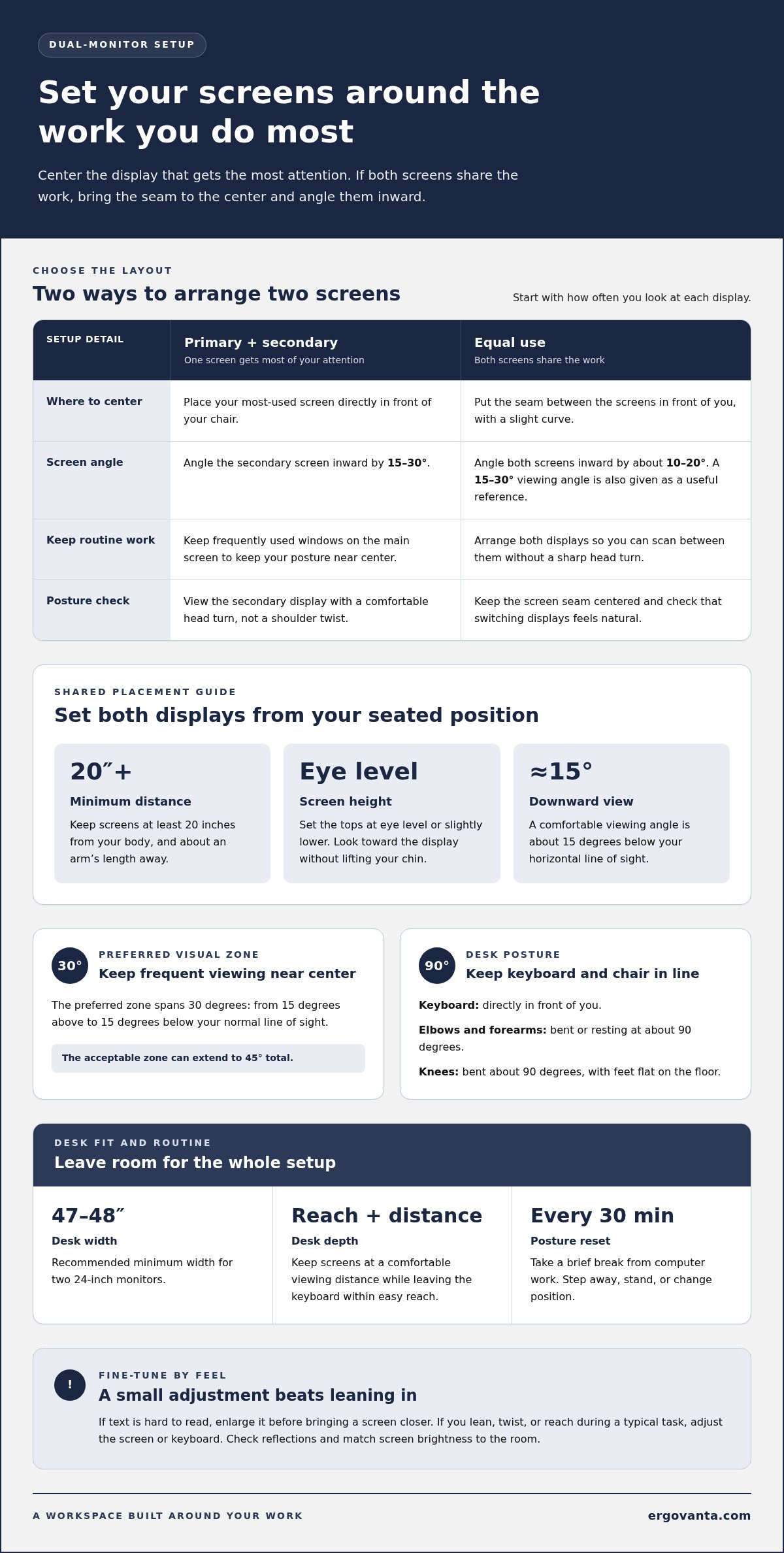
Two screens should fit your posture, not pull it apart. To learn how to properly set up dual monitors for ergonomics, center the screen you use most, angle the second toward you, and keep both about an arm’s length away at eye level or slightly lower. If you use both equally, place them side by side with a slight inward curve.
That gives you a useful starting point, but the details matter. A screen that is too high, too close, or too far to one side can make long work sessions less comfortable. Your chair, desk, keyboard, and corrective lenses also affect the fit.
This guide covers monitor placement, height, viewing distance, comfortable sitting, and adjustments for bifocal, trifocal, or progressive lenses. You’ll also learn when monitor arms, stands, and other ergonomic accessories can make a two-screen workspace easier to adjust. Start with the work you do most, then fine-tune the setup until both screens feel natural to use.
Key Takeaways
- Match the monitor layout to your workflow: keep the main screen centered, or angle both inward when you use them equally.
- Set screen distance and height so you can read without leaning forward or tilting your head to see the display.
- Adjust monitor placement for your corrective lenses, especially if you look through bifocal, trifocal, or progressive lenses.
- Use a monitor arm or stand to make screen positioning easier, then arrange your keyboard and seating to support a relaxed working posture.
- Once the screens are in place, consider how desk lighting affects the feel and usability of your workspace.
How should multiple monitors be set up?
Learning how to properly set up dual monitors for ergonomics starts with matching screen height, distance, and angle to your usual seated position. Begin with both displays about an arm’s length away. Then adjust text size, brightness, and room lighting so you can read without leaning or squinting.
Set Monitor Height and Viewing Distance
- Place both screens at the same height, with their tops at eye level or slightly lower. Keep them about an arm’s length away, and at least 20 inches from your body. Sit back in your usual position to check the distance. If you lean forward to read, enlarge the text before bringing a display closer.
- Look toward the center of each screen without lifting your chin. A comfortable viewing angle is about 15 degrees below your horizontal line of sight. Keep portrait displays from rising above eye level. For a wide screen, make sure you can see its edges without repeatedly turning your head or shifting your seat.
Arrange the Dual-Monitor Angle and Layout
- Angle both displays inward by about 10 to 20 degrees. If you use them equally, place the seam between them in front of you and create a slight curve. A viewing angle of 15-30 degrees is another useful reference for equally used screens. Check that you can scan between displays without a sharp head turn.
- Keep frequently viewed content within your natural visual zone. The preferred zone spans 30 degrees, from 15 degrees above to 15 degrees below your normal line of sight. The acceptable zone can extend to 45 degrees total, but placing routine work closer to center can reduce repeated eye and head movement.
Adjust Font Size, Brightness, and Lighting
- Increase the text or image size if details are hard to read from your chosen position. For example, open a document on each screen and compare the body text while sitting normally. Rather than moving a screen closer to compensate for small text, enlarge it so you can keep a comfortable viewing distance.
- Match screen brightness to the room and check for reflections on each display. If a window or lamp causes glare, change the screen angle or lighting direction. Compare a white page on both monitors. A noticeable brightness difference can make switching between them uncomfortable. Adjust one setting at a time, then test it with a task you do regularly.
How do you ergonomically sit at a desk with two monitors?
Center your main screen, keep the secondary monitor close enough to view without repeated torso turns, and sit with your feet supported. For two 24-inch monitors, a desk at least 47 or 48 inches wide is recommended; choose enough depth to maintain your viewing distance while leaving room for your keyboard. Take a brief break from computer work every 30 minutes.
-
Position the Primary and Secondary Screens
Place the screen you use most directly in front of your chair. Angle the secondary monitor inward so you can view it with a comfortable head turn, rather than twisting your shoulders. For an 80/20 workflow, center the primary display and angle the secondary inward by 15 to 30 degrees. Keep frequently used windows on the main screen, so routine work doesn’t pull your posture off-center.
-
Set Up the Keyboard and Chair
Move your keyboard directly in front of you, then sit close enough to type with elbows bent about 90 degrees. Let your forearms rest on the desk at a 90-degree angle. Keep your feet flat on the floor and your knees bent about 90 degrees. If your feet don’t reach comfortably, adjust your seat or use a footrest, rather than perching forward.
- Set the desk around your full setup, not just the monitors. Two 24-inch screens need a width of at least 47 or 48 inches. For desk depth, preserve enough space to keep the screens at a comfortable viewing distance while placing the keyboard within easy reach. Check that the desk edge doesn’t force your wrists to bend or your chair too far from the displays.
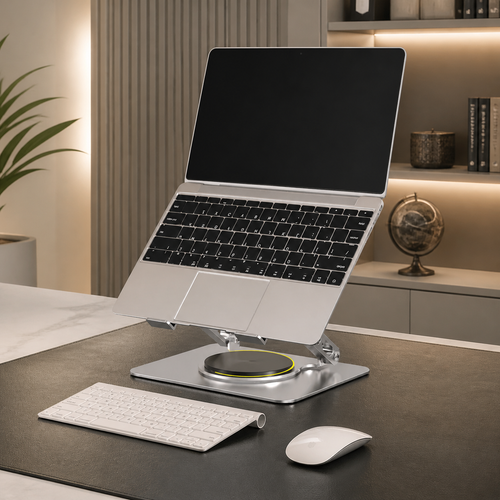
- If one screen is a laptop, raise it to a comfortable viewing height and connect an external keyboard. Typing on a low laptop while looking toward a separate monitor can put your hands and head in competing positions. Keep the laptop display near the main monitor, then place the external keyboard in front of you.
- Pay attention during a typical task. If you repeatedly lean toward one display, twist your torso, or reach across the desk, adjust the screen or keyboard. A secondary monitor too far to the side can prompt repeated neck turns, while an off-center keyboard can pull your shoulders out of line. Small adjustments can make the workstation easier to use without reaching or bracing.
- Use the 30-minute break as a posture reset. Step away briefly, stand, or change position before returning to the screens. If you’re building a workspace around a specific desk and monitor arrangement, share your workspace questions to continue planning the setup.
Monitor height and viewing distance
Set the screens for your seated position, then fine-tune the distance for their size and the work on display. These steps explain how to properly set up dual monitors for ergonomics without leaning toward either screen.
Align the Screen Height
- Sit in your regular working position and adjust the displays so your eyes meet them without lifting your chin. A downward viewing angle around 15 degrees is a useful reference. Keep tall or portrait screens from extending above eye level, since reading their upper areas can prompt you to tilt your head back.
- Check the whole display, not just its top edge. The preferred visual zone spans 30 degrees, from 15 degrees above to 15 degrees below your normal line of sight. Keep frequently viewed information within that area. For a tall screen, test both the top toolbar and lower content before settling on its height.
Check Viewing Distance for Eyestrain
- Use screen size to choose a starting distance. Place 22- to 24-inch monitors about 20 to 30 inches away. A 27-inch monitor typically sits 25 to 35 inches away. For an ultrawide, allow 25 to 35 inches so you can see its edges without leaning or turning sharply.
- Choose a comfortable viewing distance that lets you see the screen clearly without leaning forward. Then check whether text and details remain clear from your usual seat. If you lean forward to read, enlarge the font or image instead of moving the screen closer. This keeps your viewing position steady while making the content easier to see.
- Watch for signs of visual effort during everyday tasks. Squinting at a spreadsheet, leaning toward a document, or losing your place when switching screens can mean the setup needs adjustment. Change one thing at a time, such as text size or viewing distance, then reread the same material from your normal seated position.
- Give your eyes a change of focus during close-screen work. The 20-20-20 rule suggests looking at something about 20 feet away for at least 20 seconds every 20 minutes. A distant object across the room works. If you're refining how to properly set up dual monitors for ergonomics, treat viewing distance and readable text as a pair, not separate adjustments.
- Finish by checking both screens from your usual seat. Read a line near the center, then scan to the areas you use most. The resting point of accommodation is typically around 80 cm, while the resting point of vergence averages around 112 cm. Use those reference points alongside screen size and clear, relaxed viewing.
Monitor placement for corrective-lens users
Position the screens for the part of your lenses you use to view them. Then adjust your mouse and monitors for seated or standing work.
- Sit in your usual position and look at both screens through your corrective lenses. Bifocal, trifocal, and progressive lenses may feel more comfortable with the monitor tops slightly below eye level. This can help you view the screens through the useful area of your lenses without lifting your chin.
- Adjust the screen height in small steps while reading a typical document. Researchers’ experimental findings place the downward resting line of sight between about 15 and almost 30 degrees. Use that range as a reference, then check whether your eyes naturally meet the screen without tipping your head or peering through an unintended part of your lenses.
- Place your main display directly in front of you, then position the secondary screen so you can read it with a comfortable turn. If you wear progressive lenses, check the top and bottom of the screen separately. A document near the bottom may call for a different gaze angle than a video call near the top, so test both before settling on the height.
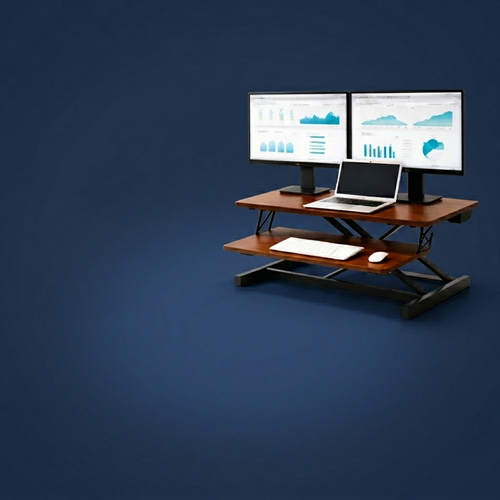
- For a standing desk, adjust screen tilt after setting the desk to your standing position. For a standing desk, tilt the monitor upward slightly after setting the desk to your standing position. Check that the adjustment lets you read the screen without leaning forward. A laptop or monitor can sit up to 30 degrees below eye level, but your lens design and comfortable head position still guide the final setting.
- Place your mouse beside the keyboard, on the side you naturally use, and keep it within easy reach. You should be able to use it without stretching your arm or leaning toward the desk edge. With two monitors, center the keyboard in front of your body, not between the displays, so using the mouse doesn’t pull your shoulders out of line.
- Test the full setup with a real task, such as reading a spreadsheet on one screen while referring to a document on the other. Look directly at each display and scan the areas you use most. If you keep lifting your chin, leaning in, or shifting your glasses, adjust the height or tilt and test again.
- Recheck the setup when you switch between sitting and standing, or change glasses. Your eye position shifts with your posture, so the same screen angle may not work in both positions. Adjust one thing at a time, then read a full page before deciding whether the new placement feels natural.
Monitor arms and ergonomic accessories
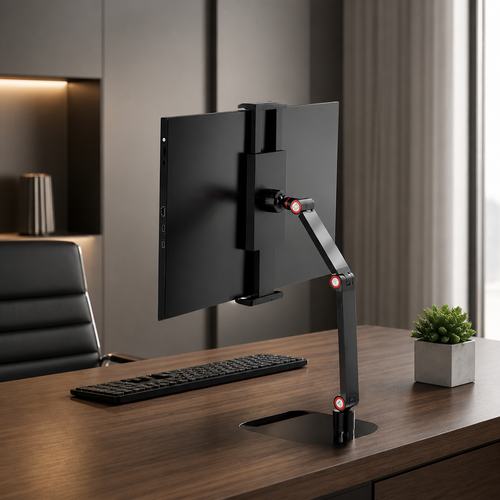
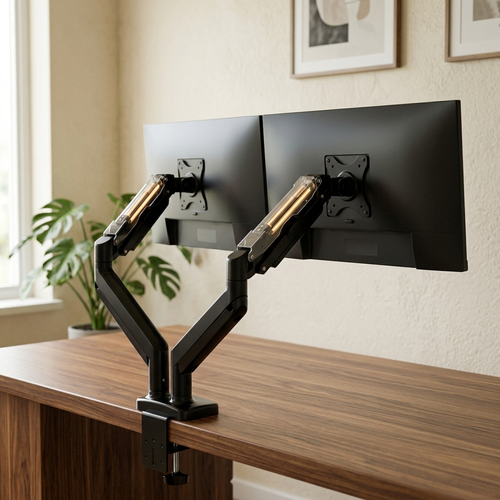
- Start with the adjustment you make most often. A monitor arm can help reposition a screen when desk space is limited or your seated and standing positions differ. Before choosing one, compare its mounting method and supported monitor requirements with your screen. Look for movement that helps you maintain a workable position, rather than extra hardware for its own sake.
- Set the arm before arranging smaller desk items. Place the primary screen where you use it, then position the secondary display to suit your workflow. For two equally used screens, angle each inward and test a viewing angle of 15 to 30 degrees. Move each screen through its usable range and check whether the arm lets you keep both displays aligned.
- Use a monitor stand when you need more height but don’t need to reposition the screen often. A stand holds the display above the desk, while an arm can make height and angle changes easier. For a fixed workstation, choose the simplest option that achieves the position you need. That can also leave more room for other desk tasks.
- Choose an accessory to solve a specific problem. A monitor light bar can provide task lighting near the displays; check for reflections after positioning it. Route cables so they don’t tug when you move an arm. Keeping cables tidy gives the screen room to move without turning each adjustment into a cable-management task.
- Test the setup before calling it finished. Move the primary display and return it to position, then repeat with the secondary screen. Check that the displays stay level and that you can reach the keyboard and mouse without leaning. If an accessory blocks the screen or takes up your writing space, reconsider its position.
- Notice how the workstation feels after a focused task. Repeated reaching, screen adjustments, or aches and pains are prompts to review what’s getting in the way, not a reason to add every accessory. Keep the rule simple: each item should support a specific task or adjustment. A considered setup can reduce distractions and leave room for the work itself.
Ergovanta: desk lamps
Ergovanta offers desk lamps to help light the workspace around your two-screen setup. Use task lighting where you read or write, and consider how it falls across both displays. If a lamp reflects in either screen, adjust its position or direction until the glare is out of your line of sight.
Ergovanta also offers floor lamps, wall lights, and ceiling lights to layer the lighting in your room. Choose lighting that suits how you use the space, whether your desk is in a shared room or a dedicated workspace. Aim for a practical, comfortable place to work without adding objects that serve no purpose.
Make the Setup Yours
Your workstation doesn’t need to be finished in one afternoon. Treat it as a work in progress. After a normal day, note what felt awkward, what got in your way, and which adjustment might help. Change one thing at a time, then assess it during the work you actually do.
Learning how to properly set up dual monitors for ergonomics is less about copying a perfect desk and more about building a setup that suits your habits, space, and tools. Keep what works and adjust what doesn’t. The best arrangement is one you can use comfortably and consistently.
If you’re ready to make a considered change to your workspace, get in touch with Ergovanta.
Make your next adjustment small and useful. Your space should work for the tasks you do.
Frequently Asked Questions
Is it Better to Position Your Monitor Higher / Lower?
Neither extreme is ideal. Set the screen so your head stays neutral while you read the content you use most. Test with a document, then a video call or spreadsheet. If switching tasks makes you repeatedly lift or lower your chin, adjust the display or the placement of those windows. Aim for a position that works across your day, not one that only looks right in a desktop screenshot.
What factors decide the proper position of the computer monitor?
Start with your main task, display size, seating position, and corrective lenses. Then consider how your workspace changes during the day. A screen used mainly for reference may need a different position from one used for detailed editing. Test the layout with your usual applications open, since toolbars, menus, and side panels can shift important content away from the center.
What should you know while setting up an appropriate viewing angle?
Angle each display toward you instead of viewing it from a sharp side angle. Open a page with text near the screen edges and scan across it. If the far edge is difficult to read, adjust the display or your seating position. Check for reflections from windows and room lights, too, since glare can make some viewing angles harder to use.
What is the ideal monitor height and viewing distance for ergonomic setup?
No single viewing distance works for every screen and task. Consider the display size and how clearly you can read its content, then test from your usual working position. Measure from your eyes to the screen, not from the desk edge. Check that menus and key content remain readable while your posture stays relaxed. Repeat the test if you change seats or use a different display.
How should two monitors be positioned for equal use versus primary and secondary use?
Let your workflow determine which screen sits in front of you. If you regularly compare two documents, keep the information you need to cross-reference visible on both displays. If one screen carries most of your work, use it for the main task and reserve the other for supporting material, such as notes or a reference document. Rearrange windows when your work pattern changes.
Should dual monitors be arranged side by side or at an angle, and what viewing angle is recommended?
Place the displays side by side and angle them toward your seated position so you can read them comfortably. The best angle depends on how often you switch screens and how far each sits from your centerline. Try a typical task with both displays active. If you keep rotating your torso, bring the less-used screen closer to your forward view.
How should monitor height, tilt, and alignment reduce neck and eye strain?
Align the screens so moving your gaze between them feels predictable. Keep important content at similar heights, and avoid tilting the displays in a way that reflects light toward your eyes. Test with a long text page and a bright document, as each may reveal a different issue. Change one setting at a time, such as tilt or screen position, to see which adjustment helps.
What is the ergonomic setup for a laptop with an external monitor?
Use the screen that carries your main task as the visual anchor, then position the laptop for the work it supports. An external keyboard lets you position your hands independently of the laptop display. For example, keep a meeting or reference window on the laptop while working on a larger document on the external screen. Arrange cables so they don’t catch when you move either display.
Disclaimer
Ergovanta publishes these guides to help people set up better workspaces. Product recommendations reflect what we sell. Specifications, prices and availability are accurate at the time of writing and may change. Nothing here is medical, ergonomic or professional advice; if you have a specific health concern about your workstation, speak to a qualified professional.
From the catalog